
Piso WiFi Pause Time (10.0.0.1): Stop Losing Paid Minutes
Why lose your paid internet minutes when you can save them for later? With Piso WiFi Pause Time, you can temporarily stop your session, keep your unused minutes, and continue browsing when you’re ready.
Just connect to your Piso WiFi network, visit http://10.0.0.1, and tap Pause Time. When you return, select Resume to continue using your remaining balance.
Whether you’re trying to pause your timer, check your remaining minutes, or fix a portal issue, you’ll find practical steps to help you get back online. Pause and resume options depend on your machine’s settings.
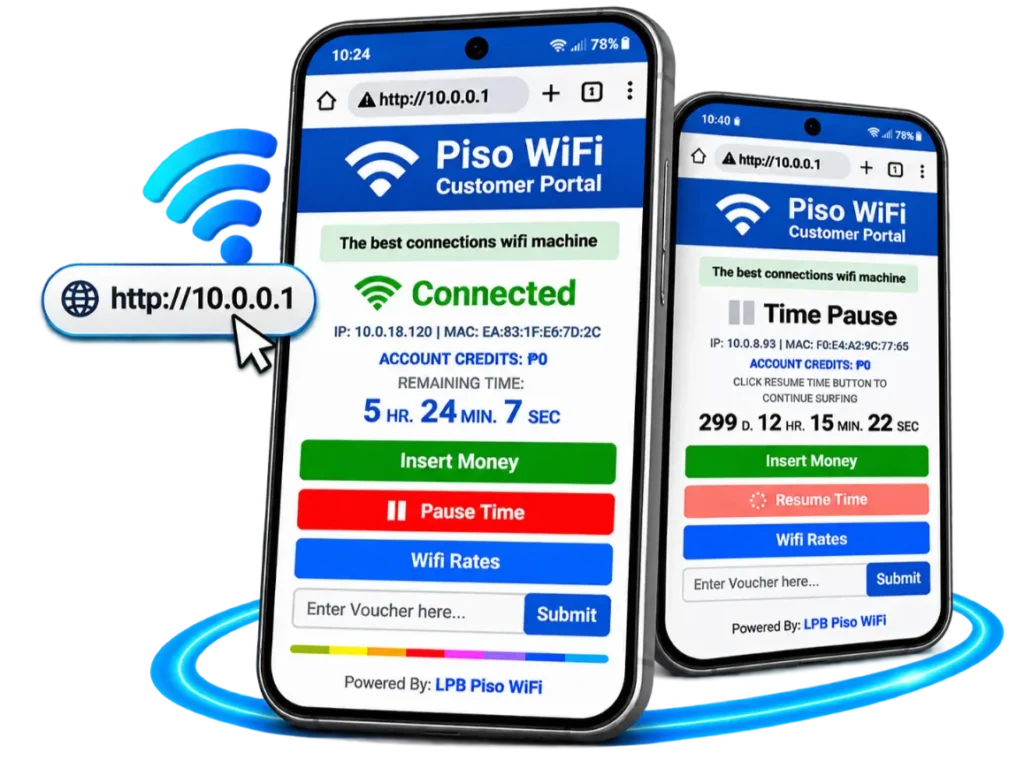
What Is Piso WiFi Pause Time?
Piso WiFi is a prepaid internet service commonly found across the Philippines. You may see vending machines near sari-sari stores, boarding houses, dormitories, markets, and other public areas.
Customers connect to a machine’s Wi-Fi network and purchase internet access using coins or vouchers. Some compatible systems also support cashless payments through GCash or Maya. Learn more about how Piso WiFi vendo machines work.
Piso WiFi Pause Time is a feature that allows customers to temporarily stop the countdown of an eligible paid internet session. Instead of letting unused minutes run out while you’re away, you may be able to save them and continue browsing later.
While your session is paused, paid internet access is normally suspended until you resume it. Your device may still show that it is connected to Wi-Fi, but websites and apps requiring internet access may not work.
For example, suppose you buy 60 minutes of internet time and use only 20 minutes.
| Session activity | Example |
|---|---|
| Purchased time | 60 minutes |
| Time already used | 20 minutes |
| Remaining balance | 40 minutes |
| After a successful pause | 40 minutes remain, subject to session rules |
If the pause is successful and your session remains valid, you can resume using those 40 minutes later.
However, pausing does not create free internet credits or guarantee that your balance will remain available indefinitely. Pause limits and expiration rules depend on the vending software and operator settings.
How to Pause Piso WiFi Time at 10.0.0.1
Some Piso WiFi machines use http://10.0.0.1 as their customer portal address. Others use a different local IP address or captive portal.
If your machine supports pausing, follow these steps to save your remaining minutes.
Step 1: Connect to the Piso WiFi Network
Open your phone’s Wi-Fi settings and select the network provided by the vendo operator. Wait until your device connects.
Some machines automatically display a captive portal where you can buy internet time or manage an existing session.
If the portal does not appear, open your browser manually.
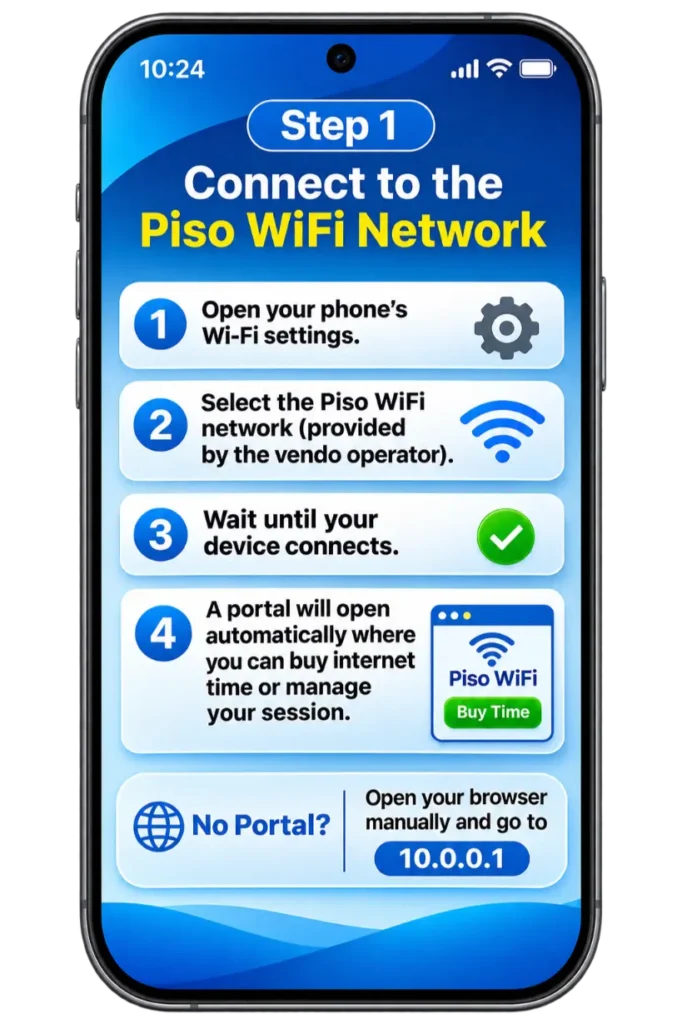
Step 2: Open the Customer Portal
Launch Google Chrome, Safari, or another browser.
Enter the following address directly into the address bar: http://10.0.0.1
If the page does not open, the machine may use a different customer portal address. You can follow our steps for troubleshooting a portal that won’t open before continuing.
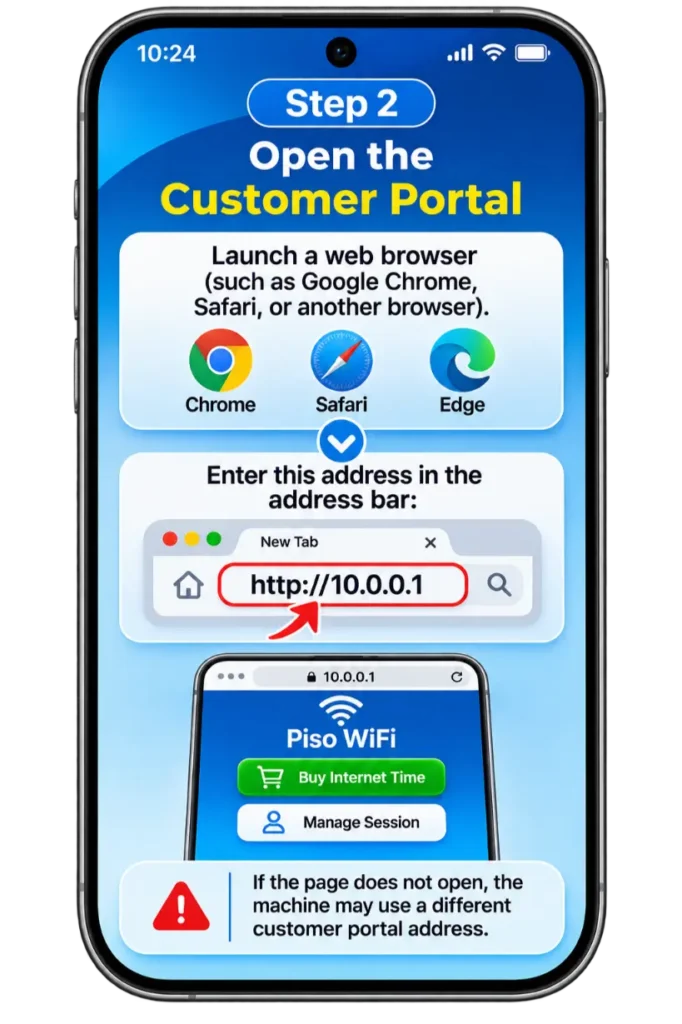
Step 3: Start Your Paid Internet Session
If you haven’t purchased internet time yet, follow the payment instructions displayed by the machine or portal.
Depending on the installation, you may be able to:
After payment, some systems activate internet access automatically. Others require you to tap Start or Connect.
Make sure your paid session is active before trying to pause it.
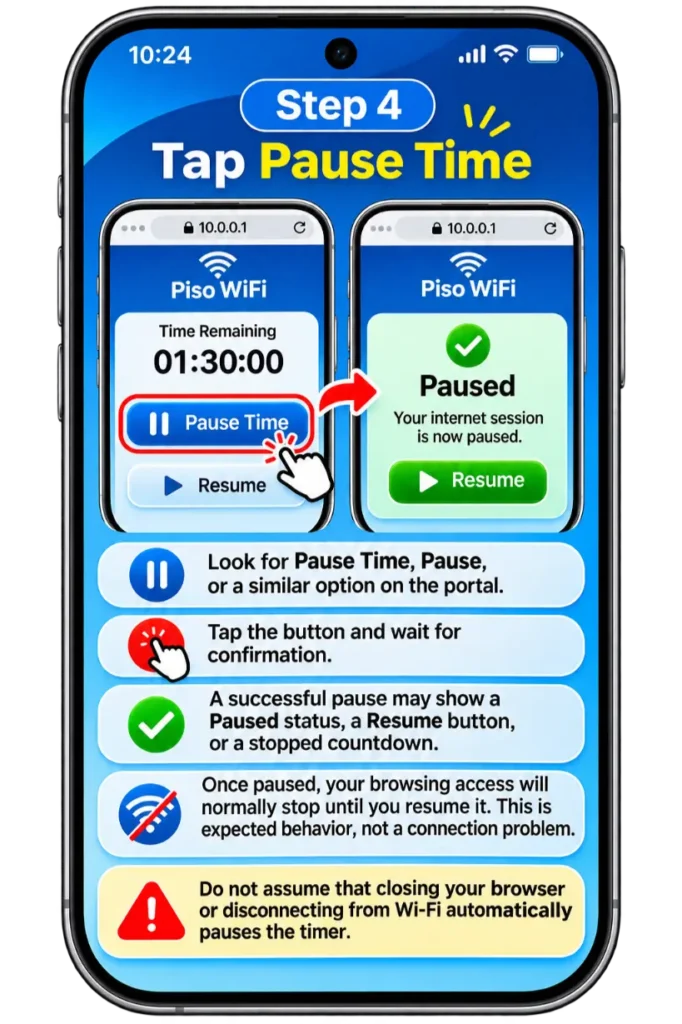
Step 4: Tap Pause Time
Look for Pause Time, Pause, or a similar option on the customer portal.
Tap the button and wait for confirmation.
A successful pause may display a Paused status, a Resume button, or a stopped countdown.
Once paused, your paid browsing access will normally stop until the session is resumed. This is expected behavior, not necessarily a connection problem.
Do not assume that closing your browser or disconnecting from Wi-Fi automatically pauses the timer.
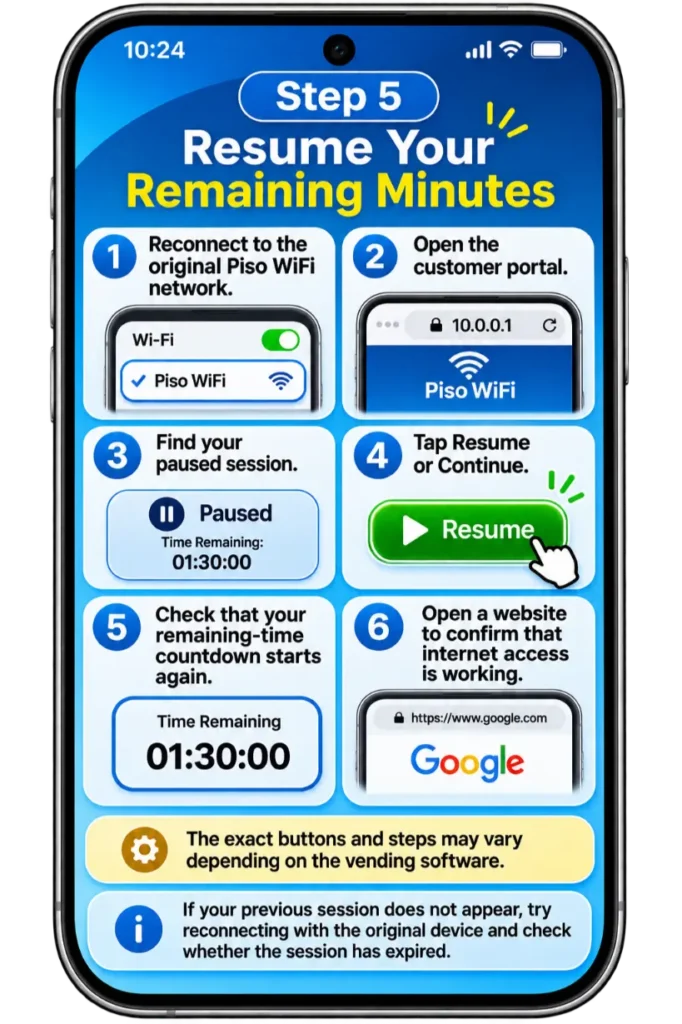
Step 5: Resume Your Remaining Minutes
When you’re ready to use the internet again:
The exact buttons and steps may vary depending on the vending software.
If your previous session does not appear, try reconnecting with the original device and check whether the session has expired.
Video Guide: How to Pause and Resume Piso WiFi Time at 10.0.0.1
Don’t have time to read? Watch this quick video to learn how to pause your Piso WiFi time and resume it later. Just watch and follow the steps!
How to Confirm That Your Time Is Paused
To confirm that Piso WiFi Pause Time is working, check the customer portal for a confirmation message or updated session status. You can also note your remaining minutes before pausing and compare them with the balance displayed afterward.
If the countdown still appears active, refresh the portal and check again. Your remaining time is not necessarily preserved until the system confirms the pause.
What If the Pause Button Is Missing?
First, confirm that you’re connected to the correct network and that your paid session is active.The Pause button may be missing because the operator disabled the feature, your session is not eligible, or the installed software does not support pausing.Changing browsers cannot enable a feature restricted by the operator.
If the button is missing or your timer keeps running, see our solutions for pause and resume problems.If pausing is unavailable, consider buying a shorter internet package or ask the operator whether unused vouchers can be activated later.
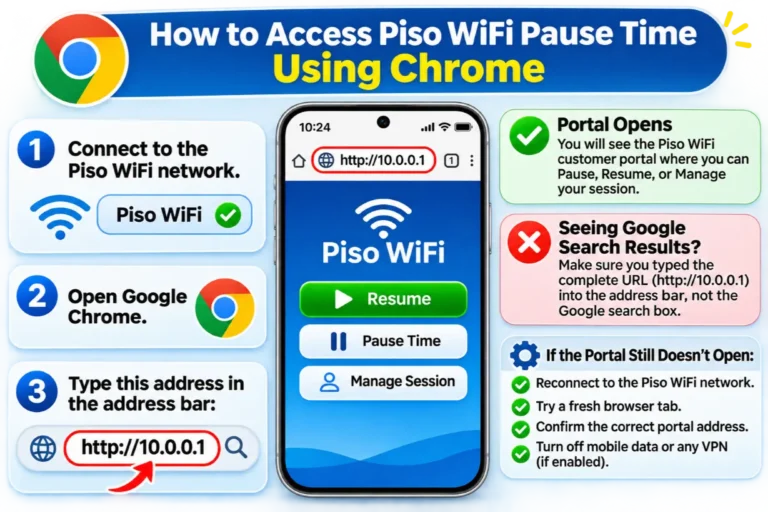
How to Access Piso WiFi Pause Time Using Chrome
Google Chrome can open a supported Piso WiFi customer portal on Android phones and computers. While connected to the correct vendo network, type http://10.0.0.1 directly into Chrome’s address bar.
If Chrome displays Google search results, check that you entered the complete URL rather than searching for the IP address. If the portal still does not open, reconnect to the network, try a fresh browser tab, and confirm the correct portal address. Mobile data or a VPN may sometimes interfere with local access. For browser-specific instructions, learn how to open the customer portal using Chrome.
Do You Need a Piso WiFi Pause Time App?
You can usually use Piso WiFi Pause Time through a browser-based customer portal, so a separate mobile app is not always required.
Some operators may offer their own applications or shortcuts. However, installing an app cannot enable pausing when the vending software does not support it.
Avoid unknown APK files that promise unlimited internet, free credits, or unrestricted access to paid sessions. Learn more about whether you need a separate Piso WiFi app before installing anything.
What Is the 10.0.0.1 Piso WiFi Portal?
10.0.0.1 is a private IPv4 address. Some Piso WiFi installations use it as a local gateway or customer portal address.
Depending on the installed system, the customer portal may allow users to:
Available controls depend on the vending software and operator settings.
You normally need to connect to the relevant Wi-Fi network before opening the portal. It is not a public website that works from every internet connection.
Common Piso WiFi IP Addresses and Typing Mistakes
| Address | Meaning |
|---|---|
| 10.0.0.1 | Valid private IPv4 address |
| 10.0.0.0.1 | Invalid IPv4 address |
| 1.0.0.0.1 | Invalid IPv4 address |
| Another gateway IP | Depends on the local network |
A valid gateway address does not always open the customer portal. Some systems use a separate captive portal or local hostname.
Customer Portal vs Admin Dashboard
Piso WiFi customers and machine owners may use different interfaces. The customer portal is intended for purchasing and managing internet access. The admin dashboard is intended for authorized operators who configure the vending system.
Feature | Customer portal | Admin dashboard |
|---|---|---|
Check remaining time | When provided | May offer session monitoring |
Pause or resume | If enabled | If supported and authorized |
Enter vouchers | If supported | Can manage voucher settings |
Change internet rates | No | Authorized owner, if supported |
Change pause limits | No | If supported and authorized |
If your Piso WiFi network uses a TP-Link router, its router login page may be different from the customer portal. The router’s settings are intended for authorized network management, not for pausing a customer’s paid internet session. Use the customer portal provided by the operator to manage your remaining time. Customers should use the customer portal rather than attempting to access restricted administration settings.
Do Customers Need a Username and Password?
Many customer portals recognize connected devices or active sessions without requiring an administrator login. Some installations may ask for a voucher, customer account, or another supported form of authentication.
If you cannot access your session, follow the operator’s instructions. For more information, see how customer portal login works.
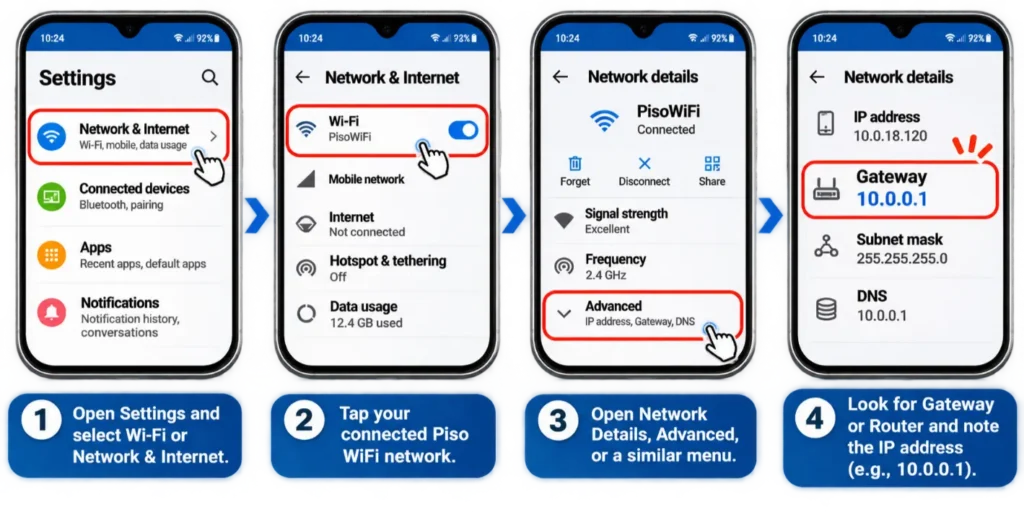
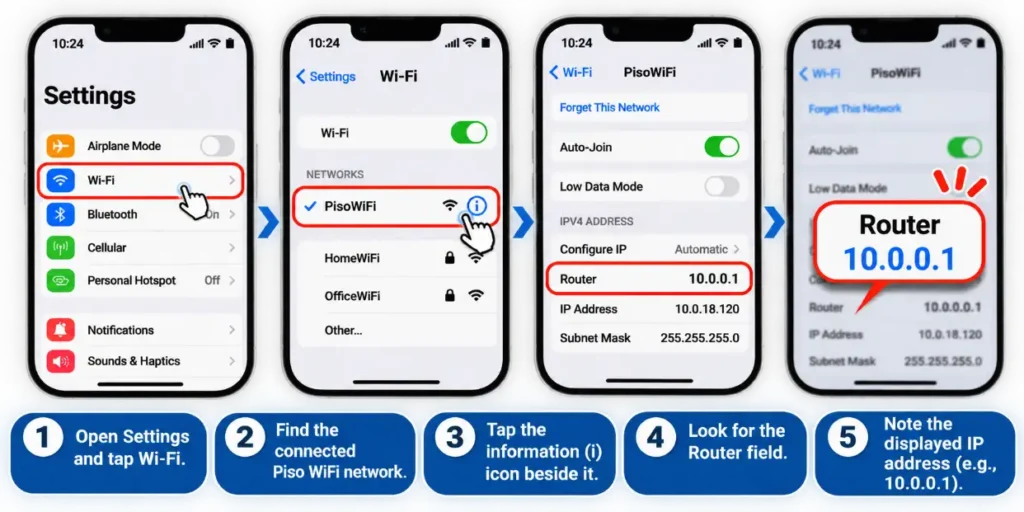
How to Find Your Piso WiFi Gateway Address
If 10.0.0.1 does not work, your network may use another gateway. Your phone or computer can usually show the gateway assigned to its Wi-Fi connection. The gateway is a useful starting point, but it does not always identify the customer portal.
On Android Phones
On iPhone
You can try opening the router address in Safari. If it leads to an administration page, do not attempt to access restricted settings.
On Windows
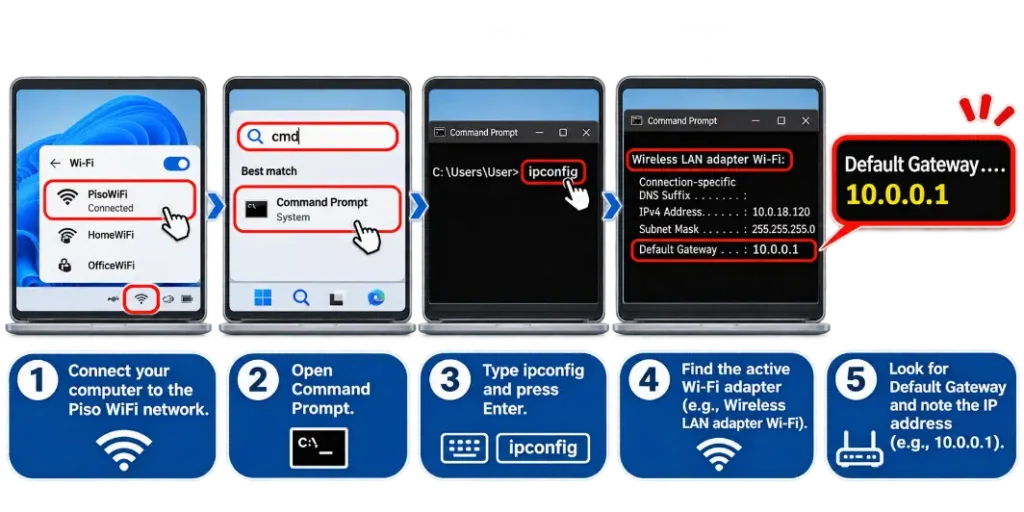
You can also open Chrome or Microsoft Edge and visit http://10.0.0.1 to access the customer portal if your machine uses that address. If your paid session supports pausing, select Pause Time and confirm that the countdown has stopped.
If the gateway does not open the customer portal, ask the operator for the correct address.
How to Check Your Remaining Piso WiFi Time
Open the customer portal while connected to the vendo network. Look for Remaining Time, Session Time, Balance, or a similar label.Check your remaining minutes before pausing. This gives you a reference when you return to resume your session.
After the system confirms the pause, check the balance again if the portal allows it.For a detailed explanation of the balance display, see how to check your remaining internet time.
Remaining Minutes vs Session Expiration
Remaining internet time and session expiration are not always the same. For example:
| Session detail | Example value |
|---|---|
| Remaining internet time | 25 minutes |
| Session expiration | 6:00 PM |
| Current session status | Paused |
You may still have 25 unused minutes, but your session could become invalid at 6:00 PM.
The remaining-time balance shows how much paid internet time is left. The expiration deadline determines how long the purchased session remains valid.
Some systems also use data limits. A package may include a fixed amount of internet time, a data allowance, or both. If you reach the data limit before your minutes run out, internet access may stop even though the portal still shows remaining time.
For example, a package with 30 minutes and a 500 MB data limit may stop providing access after the 500 MB is consumed, depending on how the operator configured the package.
This is different from a pause problem. Check the package details or ask the operator whether your purchase includes a data cap.
What Does Piso WiFi Pause Time Not Do?
Pausing can help preserve unused internet minutes, but it has limitations.
A successful pause does not automatically:
The available features and restrictions depend on the installed vending software and operator settings.
Does Disconnecting Wi-Fi Save Your Remaining Time?
Not always. Some Piso WiFi systems continue counting down after you disconnect, close the browser, or lock your phone.Other systems support automatic pausing when a device disconnects or becomes inactive.
For example, AdoPiSoft documents settings that can automatically pause a session when a device disconnects and resume it after reconnection.Whether this happens depends on the machine owner’s configuration.When a Pause button is available, use it and confirm that your session has stopped before leaving.
Before You Buy a Voucher for Later
If you plan to purchase a voucher and activate it later, check its expiration and activation rules. An unused voucher may be treated differently from a paid session that has already started.
Ask the operator whether the voucher can be saved for later use and whether an expiration date applies. Do not assume that purchasing a voucher gives you unlimited time to activate it.
How Long Can You Pause Piso WiFi Time?
There is no universal duration for Piso WiFi Pause Time. How long you can keep a session paused depends on the vending software and operator settings. Some systems allow repeated pauses. Others limit how often or how long a customer can pause a session.
AdoPiSoft, for example, documents configurable pause permissions, pause limits, and session expiration settings. For a deeper explanation, read about pause limits and session expiration rules.
Does Paused Time Last Forever?
No. A paused session may become invalid when its expiration deadline passes, even if unused minutes remain.Check the portal for an expiration notice or ask the operator about the applicable rules.
How Many Times Can You Pause a Session?
The number of allowed pauses varies between vending systems.Some installations support repeated pauses, while others apply limits or eligibility conditions.Do not assume that one successful pause means unlimited pauses are available.
Why Is Piso WiFi Pause Time Not Working?
If Piso WiFi Pause Time is not working, you may notice a missing Pause button, an inaccessible portal, or a timer that keeps running.
Start by checking your network connection and session status.
Problem | Possible cause | First action |
|---|---|---|
Pause button missing | Feature disabled or session ineligible | Check with the operator |
10.0.0.1 not opening | Wrong address or network | Check the gateway |
Chrome shows search results | Address entered as a search | Enter the complete URL |
Portal redirects incorrectly | Wrong local portal address | Confirm the portal URL |
Router login appears | Management interface opened | Ask for the customer portal |
Portal does not update | Temporary page or connection issue | Refresh and check status |
Timer keeps running | Pause not confirmed | Recheck the session |
Resume button missing | Session not found or expired | Reconnect and check |
Internet unavailable | Session paused, data exhausted, or network issue | Check session and package limits |
Session missing after reboot | Restart behavior or session data issue | Ask the operator to verify |
These checks help identify possible causes, but they cannot resolve every software or network problem.
Why Does the Timer Keep Running After Pausing?
The portal may not have accepted your pause request.A temporary connection problem can also prevent the page from displaying an updated session status.
Refresh or reopen the customer portal and check whether the countdown has stopped.If the timer continues running, contact the operator. Do not assume your remaining minutes are being preserved.
Why Did My Session Expire While Paused?
Your session may have reached its expiration deadline.Check whether the portal shows an expiration notice or whether the session is no longer available.If you believe the session ended earlier than expected, ask the operator to check the purchase and session details.
What Happens if the Machine Loses Internet?
If the vending machine’s upstream internet connection fails, customers may lose access even while their paid sessions remain active.Some software includes an option to automatically pause active sessions when the machine loses internet connectivity.
For example, AdoPiSoft documents an Auto Pause When Internet Is Down setting. When enabled and working as intended, it can help protect eligible session time during an outage.However, this behavior is not universal. If the operator has not enabled the setting, the countdown may continue during a connection failure.
Once service returns, check your remaining balance and session status. Contact the operator if paid minutes appear to have been consumed during the outage.
What Happens if the Machine Restarts While Paused?
A machine restart does not always mean your remaining time is lost. However, session behavior after a reboot depends on the vending software and its settings.
AdoPiSoft documents an option called “Automatically continue sessions after reboot.” This setting controls how eligible sessions behave after a restart. It does not mean every paused session is guaranteed to be restored.
Reconnect to the network and check your session status. If your balance is missing, ask the operator to verify whether it can be recovered.
Can You Resume Piso WiFi Time on Another Device?
Do not assume that every paused session can be transferred between phones.Some vending systems associate paid time with the original device or another session identifier.A different phone may not automatically recognize your remaining balance.
However, LPB Piso WiFi advertises cloud-based session time that can remain synchronized across compatible LPB machines.This does not mean every customer can transfer a session freely between devices.The actual behavior depends on the platform, session requirements, and operator settings.
Using the original device and network is a useful first step when troubleshooting.If you need to switch phones, ask the operator whether the system supports it.Connecting multiple devices and transferring a paid session are different actions.You can learn more about using a paid session on another device.
LPB vs AdoPiSoft vs PisoFi vs JuanFi: Pause Time Differences
Piso WiFi is a general service category, not a single software platform. Different vending systems may use different customer portals, session controls, payment methods, and expiration rules.
Platform | Documented features | Important limitation |
|---|---|---|
LPB Piso WiFi | Cloud session time across compatible machines; GCash and Maya payments | Requires a compatible LPB installation |
AdoPiSoft | Pause permissions, pause limits, expiration settings, automatic pause/resume, and optional outage-related auto-pause | Operator settings determine behavior |
PisoFi | Configurable pause time, maximum pause duration, validity, and automatic pause/resume options | Check the installed software version |
JuanFi | Pause with remaining time and automatic voucher resumption in version 3.3 | Features depend on the installed release and configuration |
LPB Piso WiFi
LPB Piso WiFi lets users buy internet time with coins, vouchers, or supported GCash and Maya payments. It also offers cloud-based session management, which can help users keep their remaining time across compatible LPB machines.These features depend on the machine’s setup. Read our LPB Piso WiFi guide to learn more about its login, vouchers, and session options.
AdoPiSoft
AdoPiSoft lets machine owners control how customers use their paid internet time. Owners can set pause limits, session expiry times, and automatic pause options.
Some machines can also pause active sessions when the internet goes down. These options depend on the owner’s settings.Learn more about these features in our AdoPiSoft Piso WiFi Page.
PisoFi
PisoFi supports pause and resume options, including limits on how long a session can stay paused. Some versions also support automatic pausing.The available options depend on the software version and machine settings.
JuanFi
JuanFi is an open-source system used with MikroTik hotspots. Version 3.3 includes options to pause remaining internet time and automatically resume vouchers when users reconnect.These features may work differently depending on the installed version and machine settings.
How to Stay Safe on a Piso WiFi Network
Piso WiFi is a shared network, so basic security precautions are important.Use the network name provided by the machine operator.Avoid entering personal account passwords into unfamiliar local portals.
Do not install unknown applications that promise free credits, unlimited internet, or administrator access.For sensitive activities, prefer secure HTTPS websites and avoid ignoring browser security warnings.
If a portal requests unusual information or permissions, confirm its legitimacy with the operator.Machine owners should use strong administration passwords and keep supported software updated.
Frequently Asked Questions
Final Thoughts
Piso WiFi Pause Time helps customers save unused prepaid internet minutes when they need to take a break. On supported machines, open the customer portal, select Pause Time, and confirm that the countdown has stopped before leaving.
When you’re ready to browse again, reconnect and select Resume or Continue. Remember that pause limits, session expiration, data allowances, and automatic session controls depend on the installed vending software and operator settings.
If 10.0.0.1 does not open or the Pause button is unavailable, check your Wi-Fi connection, portal address, and session status. If the problem continues, contact the machine operator for help.