Piso WiFi Login: Open 10.0.0.1 & Connect in Easy Steps
Want to connect to Piso WiFi but can’t find the login page? Piso WiFi Login lets you access your local WiFi portal, insert coins, activate a voucher, or sign in to a customer account if your network supports one.
First, connect to the Piso WiFi network. Open your browser and enter http://10.0.0.1 if that is your network’s configured portal address. If the customer portal appears, follow the payment or login instructions to get online.
Not every Piso WiFi machine uses the same address or login method. This guide explains how to find the correct portal, connect using different devices, and fix common access problems.
What Is Piso WiFi Login?
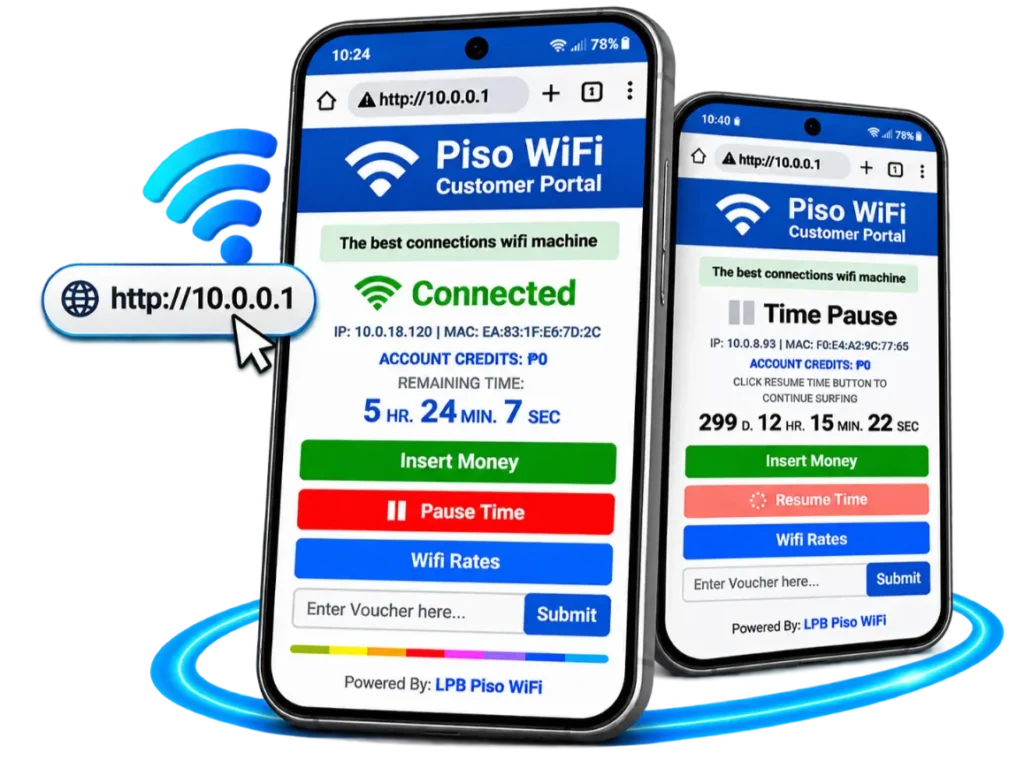
Piso WiFi login is the process of accessing a paid WiFi network through its customer portal. These networks are common in the Philippines, where users can purchase internet access using coins, vouchers, or other payment methods supported by the operator, with the option to pause their internet time on supported machines.
The login page is also called a captive portal. It appears when you connect to a network that requires an action before granting internet access.
Depending on the system, the portal may let you:
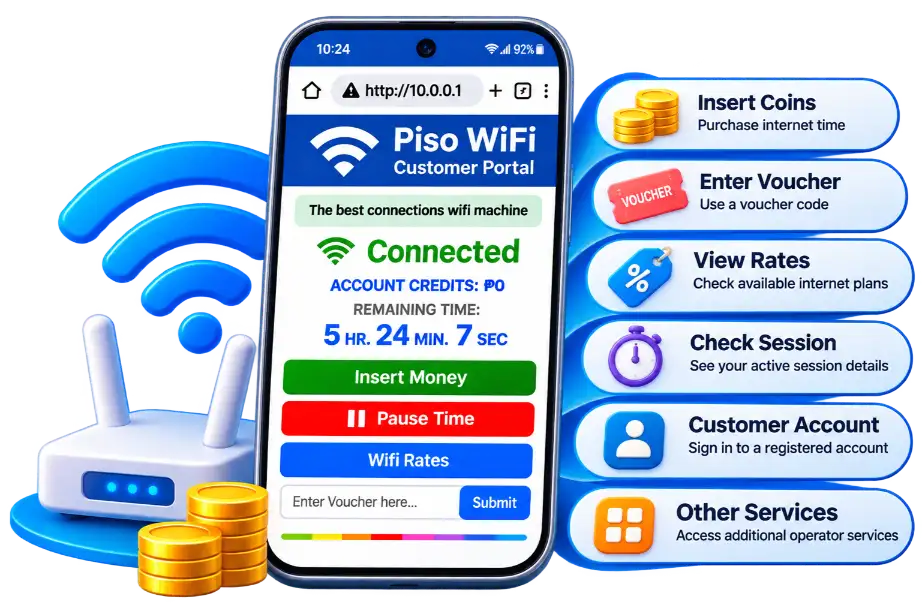
Important: Connecting to the WiFi network does not always mean you have internet access. You may still need to activate a paid session.
Why Does Piso WiFi Ask Me to Sign In When I’m Already Connected?
Connecting to Piso WiFi gives your device access to the local network, but it doesn’t always activate internet service. You may still need to insert coins, enter a voucher, or sign in to a customer account. This is normal behavior for a captive portal.
Customer Portal vs Admin Login
Piso WiFi has two different types of access.
| Customer portal | Admin dashboard |
|---|---|
| Used by people buying internet access | Used by authorized machine operators |
| May accept coins, vouchers, or customer accounts | Requires administrator credentials |
| Shows available customer features | Controls rates, users, sessions, and system settings |
| Usually opens after connecting to the network | Uses a separate management interface |
If you’re trying to manage your machine rather than purchase internet access, see our Piso WiFi Admin guide.
How to Log In to Piso WiFi at 10.0.0.1
Follow these steps to open the Piso WiFi customer portal.
Step 1: Connect to the Piso WiFi Network
Open your phone or computer’s WiFi settings.
Find the network name displayed on the vending machine or provided by the operator. Select it and connect.
Some networks are open, while others require a WiFi password.
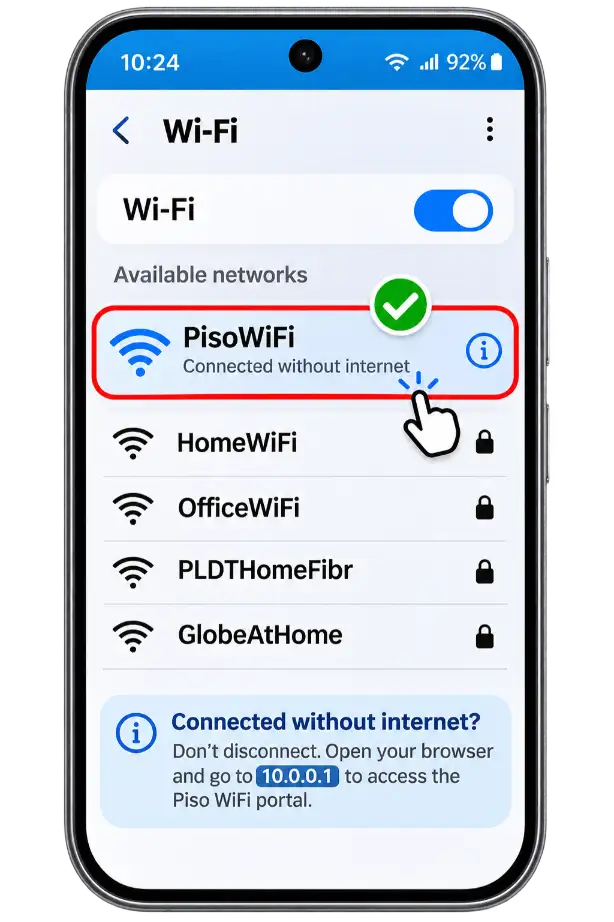
If your device displays Connected without internet, don’t disconnect immediately. The network may be waiting for you to complete the portal process.
Step 2: Open the Customer Portal
After connecting, your device may automatically display a sign-in page.
If nothing appears:
Use the http:// address when accessing a local portal that uses HTTP. Don’t assume that changing it to HTTPS will work.
Note: 10.0.0.1 is a private network address, not a public website. It only works when the connected network provides a service at that address.
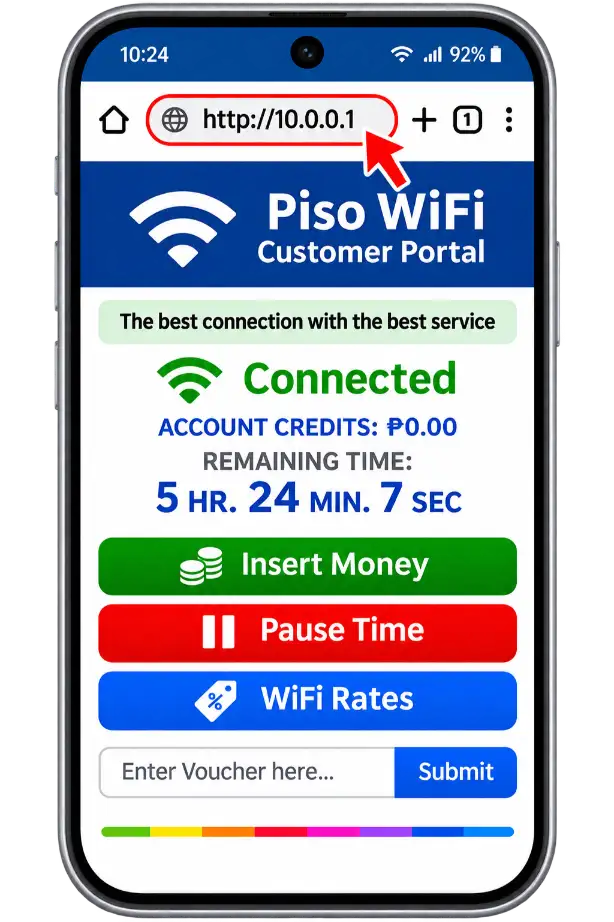
Step 3: Choose Your Payment or Login Method
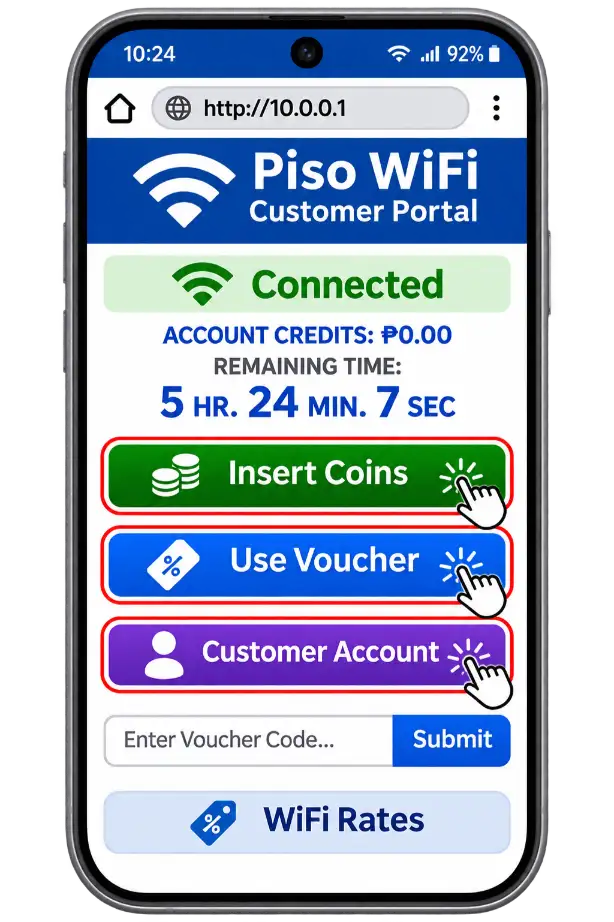
Once the portal opens, look for the available options.
Insert coins: Select the appropriate payment option if required, follow the machine’s instructions, and insert your coins.
Use a voucher: Find the voucher activation field, enter your code, and submit it.
Customer account: If the portal provides an account login, enter the credentials for your registered customer account.
The available buttons and payment methods depend on the software and operator settings.
Step 4: Confirm Your Internet Connection
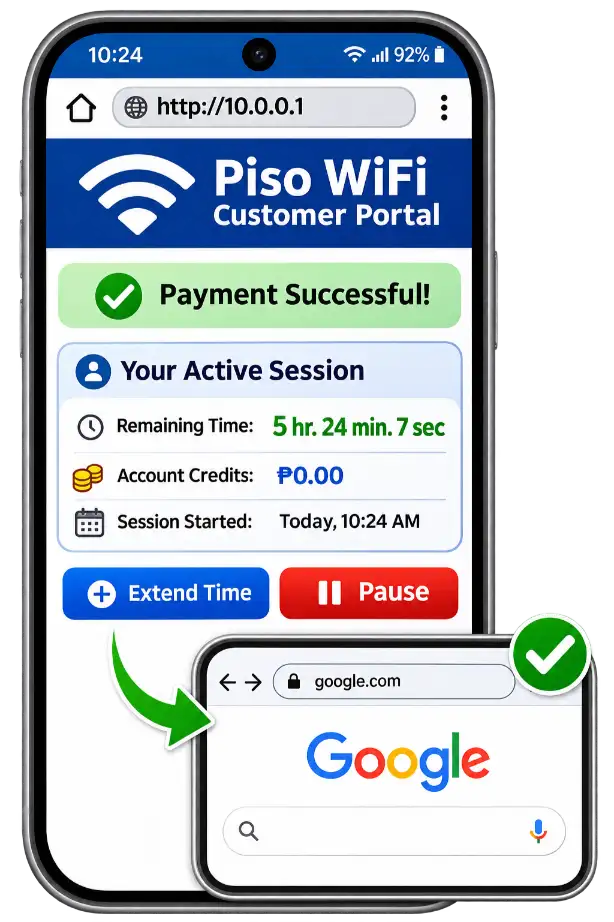
After your payment or voucher is accepted, the portal may show your active session or remaining balance.
Open a website to check whether internet access is working.
If the payment succeeds but browsing still fails, return to the portal and check your session status. Ask the operator for help if the problem continues.
Can I Open the Piso WiFi Login Portal Without Internet?
Yes. You can often open the customer portal without an active internet connection because the portal may be hosted on the local network. However, your device must be connected to the correct Piso WiFi network, and the local network and portal service must be working. You may still need to pay or activate a voucher before browsing the internet.
How to Open Piso WiFi Login on Android, iPhone, and PC
The customer portal works through a browser or your device’s built-in WiFi sign-in screen. You usually don’t need to install an app.
Piso WiFi Login on Android
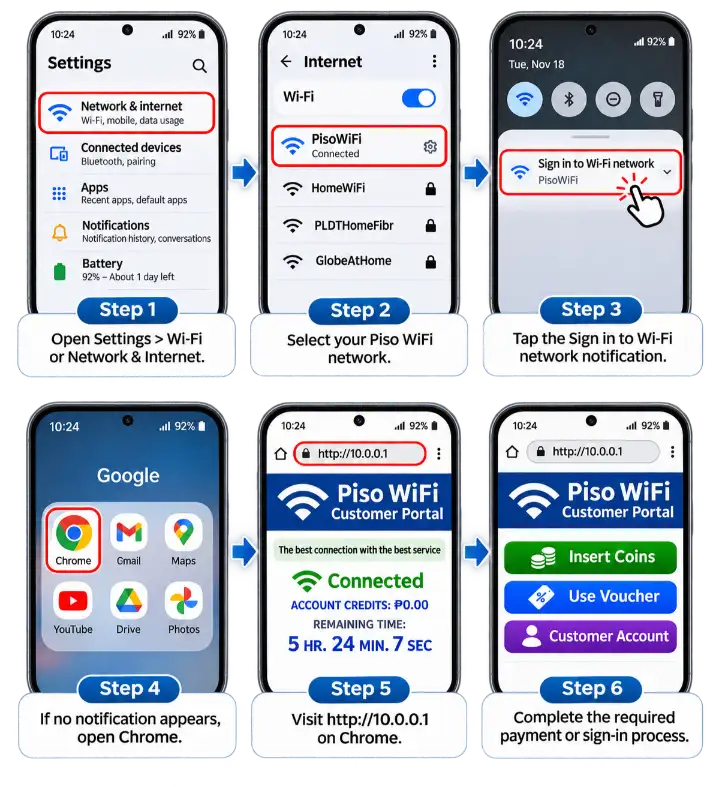
Android can detect captive portals and prompt users to sign in. The exact notification and settings names vary by phone.
Piso WiFi Login on iPhone
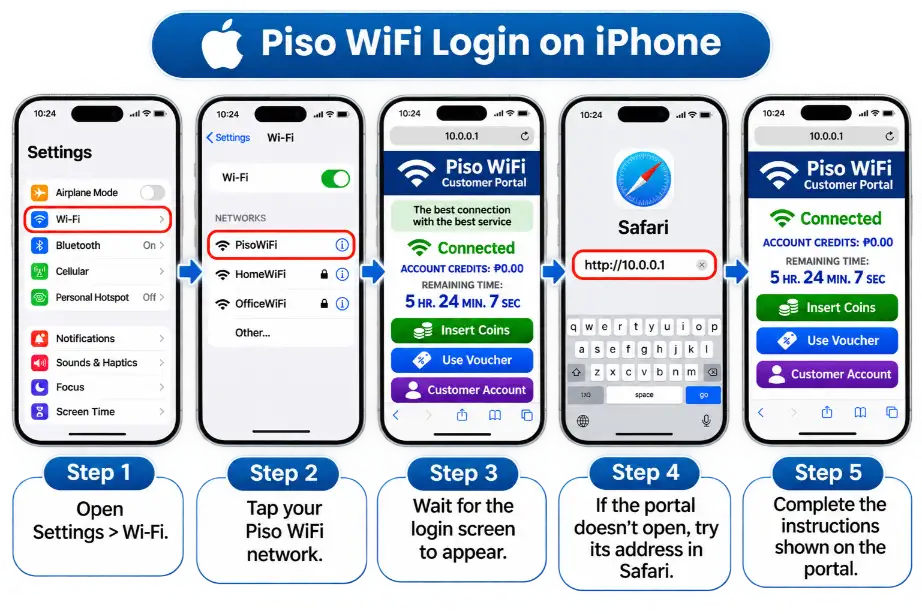
Apple supports captive WiFi login screens, so you may not need to enter the portal address manually.
Piso WiFi Login on Windows
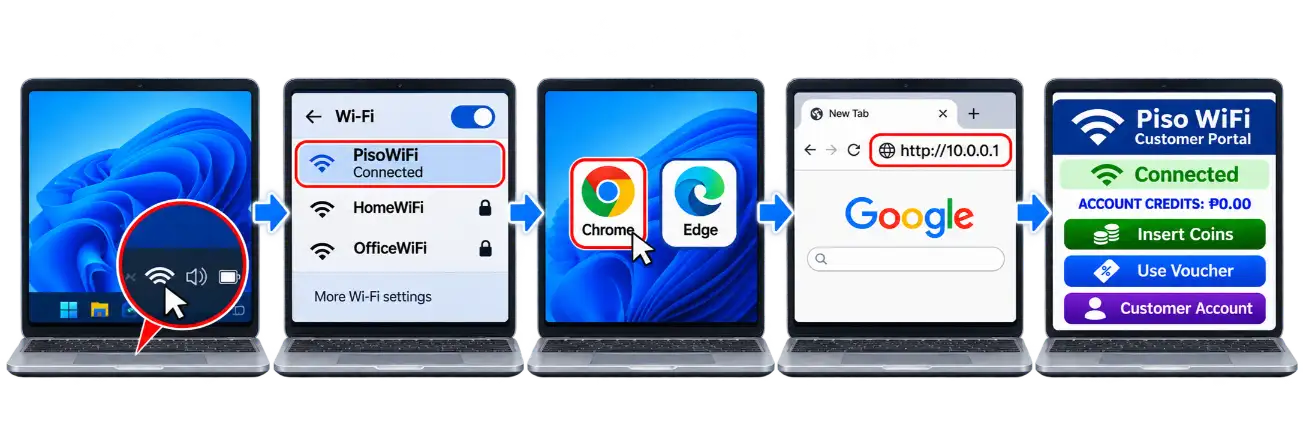
If Windows reports No internet, the customer portal may still be accessible through the local network.
Do You Need a Username and Password for Piso WiFi Login?
Not always. Many Piso WiFi customers can purchase internet access without creating an account.However, there are three different situations.
Access method | What you need |
|---|---|
Coin-operated access | Payment through the vending machine |
Voucher activation | A valid voucher code |
Registered customer account | Your account username and password |
For example, AdoPiSoft supports optional customer accounts. Registered users can manage vouchers, use a wallet, and review payment records.
If the operator has enabled registration, the customer portal may display a My Account option.
An account login is different from a voucher code. Don’t enter an administrator password into a customer login form.
How to Use a Piso WiFi Voucher
If you have a voucher:
- Connect to the correct WiFi network.
- Open the customer portal.
- Find the voucher activation field.
- Enter the code exactly as provided.
- Submit it and check whether your session starts.
A voucher may provide time-based access, data-based access, or a combination of both. If your code is rejected, check for typing mistakes, previous use, expiration, or restrictions set by the operator.
What If 10.0.0.1 Is Not Your Piso WiFi Login Address?
Although 10.0.0.1 is commonly associated with Piso WiFi, it is not the universal address for every machine. Different systems and network configurations can use other local addresses or portal URLs. The easiest solution is to use the sign-in page that appears after joining the network. You can also check the instructions displayed on the vending machine.
How to Find Your Network Gateway
Your device’s gateway address can help identify the local network configuration.
On Android
Open the connected WiFi network’s details and look for Gateway or Router. The location varies by manufacturer.
On iPhone
Open Settings > Wi-Fi, tap the information icon beside the connected network, and check Router.
On Windows
Open Command Prompt, type ipconfig, and find Default Gateway under your WiFi adapter.
The gateway may be a router rather than the Piso WiFi portal. Don’t assume that opening it will always display the customer login page.
Common Piso WiFi Login Address Mistakes
Incorrect entry | What to do |
|---|---|
10.0.0.0.1 | Try 10.0.0.1 if that’s the operator’s address |
10.0 0.1 | Replace spaces with dots |
10.0-0.1 | Use the correct dotted format |
1.0.0.0.1 | Check the address provided by the operator |
www.10.0.0.1 | Enter the local IP address without www |
An IPv4 address normally has four numeric sections separated by dots. 10.0.0.0.1 has five, so it is not a valid IPv4 address.
Always confirm the correct login address with the Piso WiFi operator. Even if you enter a valid IP address, the customer portal will only open if that address is configured for your network. For detailed connection problems, read our guide to fixing 10.0.0.1 when it won’t open.
How to Log Out of Piso WiFi
Some customer portals provide a logout or session control, but the available options differ by system.If you have a registered customer account, use its Log Out option when available. This signs you out of that account.
If you only want to disconnect your device, turn off WiFi or select Forget Network in your device settings.However, disconnecting from WiFi does not necessarily stop your paid timer.
Some systems can automatically pause sessions when a device disconnects, but that behavior depends on the operator’s configuration.If you want to preserve unused minutes, check whether your portal supports a pause feature. Our Piso WiFi Pause Time guide explains how pause and resume work.
Why Is Piso WiFi Login Not Working?
If the login page doesn’t open or your internet access doesn’t start, identify the problem before changing your device settings.
Problem | Possible solution |
|---|---|
Login page doesn’t appear | Reconnect to the correct WiFi network and try the portal address |
10.0.0.1 won’t load | Confirm the correct address and check the network gateway |
Connected without internet | Open the customer portal and check whether payment is required |
Voucher is rejected | Check the code and ask the operator to verify its status |
Login credentials don’t work | Confirm you’re using a customer account, not admin credentials |
Portal keeps reloading | Close and reopen the sign-in window or try a browser |
Portal opens but websites don’t | Check session activation and whether the network has upstream internet |
Browser shows a security warning | Verify the address; don’t enter sensitive credentials into an untrusted page |
The Login Page Does Not Appear Automatically
First, disconnect and reconnect to the Piso WiFi network.Then open a browser and visit the local portal address supplied by the operator.
If the login page doesn’t appear, open a regular HTTP webpage to help trigger the network’s sign-in screen. If that doesn’t work, check the portal address provided by the operator.
Temporarily disabling a VPN or private DNS service may also help if it interferes with portal detection. Restore your preferred settings afterward.
Login Works, but There’s Still No Internet
A successful portal login does not guarantee that the vending machine’s upstream internet connection is working.Check whether your paid session is active.
If your session is active but no websites load, the machine or its internet provider may be experiencing a problem.Our Piso WiFi connected but no internet guide covers this issue in more detail.
The Browser Shows a Security Warning
Some local portals use HTTP or have HTTPS certificate configuration problems.An HTTP portal is not the same as an encrypted HTTPS website.
If you see a certificate warning, don’t automatically bypass it. Confirm the correct portal address with the operator, especially before entering account passwords or payment information. Never install an unknown certificate or app simply because a portal asks you to.
How to Stay Safe When Using a Piso WiFi Login Portal
Piso WiFi is often a shared public network, so basic security precautions matter.
You generally don’t need a separate app to access a browser-based customer portal.
Frequently Asked Questions
Final Thoughts
Piso WiFi Login is usually straightforward once you know which network and customer portal to use.Connect to the correct WiFi, open the portal at http://10.0.0.1 when supported, and follow the payment or voucher instructions. If your machine offers customer accounts, use the separate account login option.
Remember that portal addresses, available features, and session rules vary between operators. When the login page doesn’t work, verify the network and address before trying more advanced fixes.