
Piso WiFi Admin Login: Access Your Dashboard & Manage Settings
Need to open your Piso WiFi admin dashboard to check sales, manage users, or change your machine’s settings? You must use the correct administrator address and login credentials for your installed software.
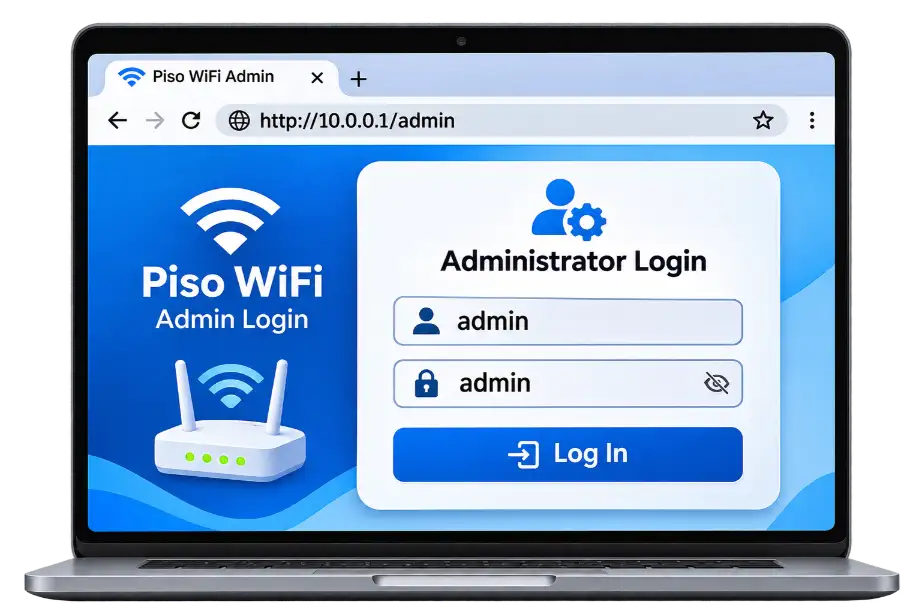
For AdoPiSoft’s documented local setup, connect to the machine’s network and open http://10.0.0.1/admin. Enter your current administrator username and password to access the dashboard.
AdoPiSoft documents admin as both the initial username and password, but these credentials may have been changed. Other systems, including LPB Piso WiFi, can use different login details.This guide explains how to access your admin panel, manage settings, protect your account, and solve common login problems.
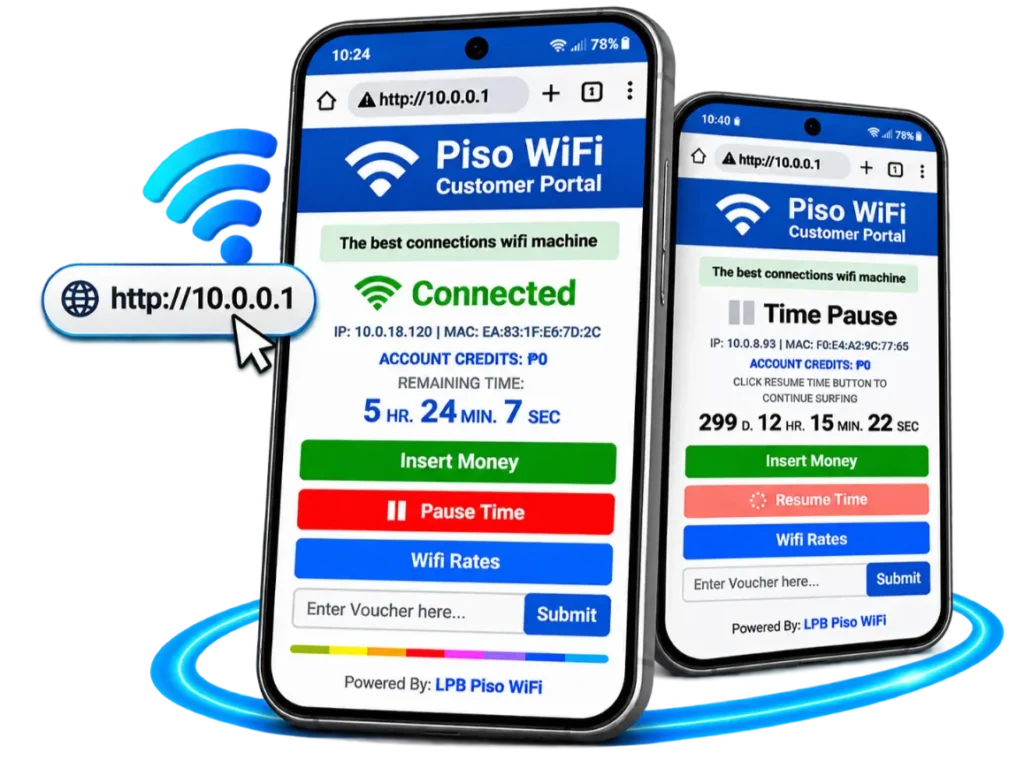
What Is the Piso WiFi Admin Dashboard?
The Piso WiFi admin dashboard is the management panel used by owners, operators, and technicians of Piso WiFi vending machines.It provides access to administrative functions that regular WiFi customers cannot use.
Depending on your software and permissions, you may be able to:
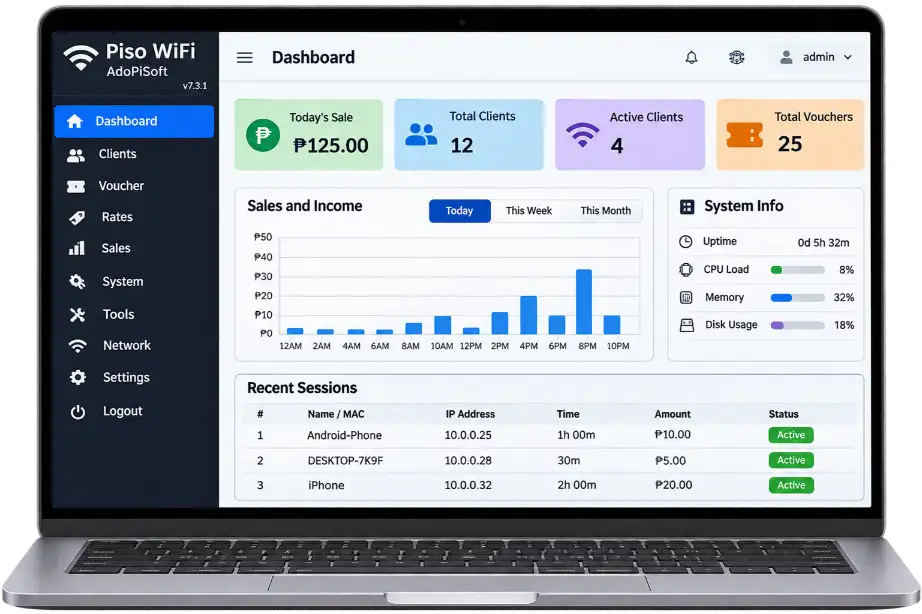
Admin Dashboard vs. Customer Login
Customer portal | Admin dashboard |
|---|---|
Used by customers purchasing internet access | Used by machine owners and authorized operators |
Accepts supported coins, vouchers, or customer accounts | Requires administrator credentials |
Shows customer session options | Provides machine management tools |
Has limited customer permissions | Provides access according to admin permissions |
Provides access according to admin permissions
How to Log In to Piso WiFi Admin
Follow these four steps to access your machine’s administrator dashboard.
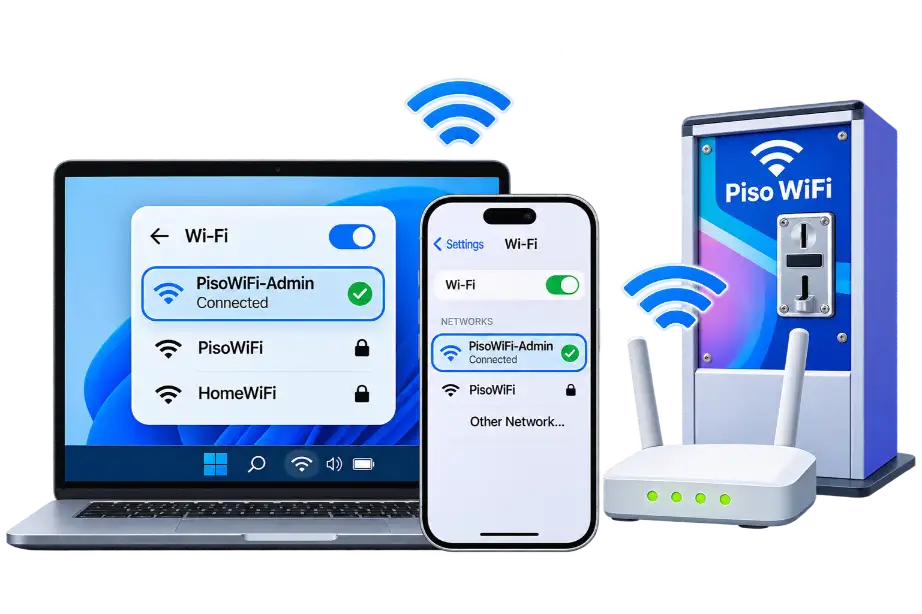
Step 1: Connect to Your Piso WiFi Management Network
Turn on your machine and check that its networking equipment is working.
Connect your phone or computer to the network authorized for machine management.
Depending on the installation, this may be the regular Piso WiFi network, a separate management WiFi connection, or a wired network.
Step 2: Open the Admin Login Address
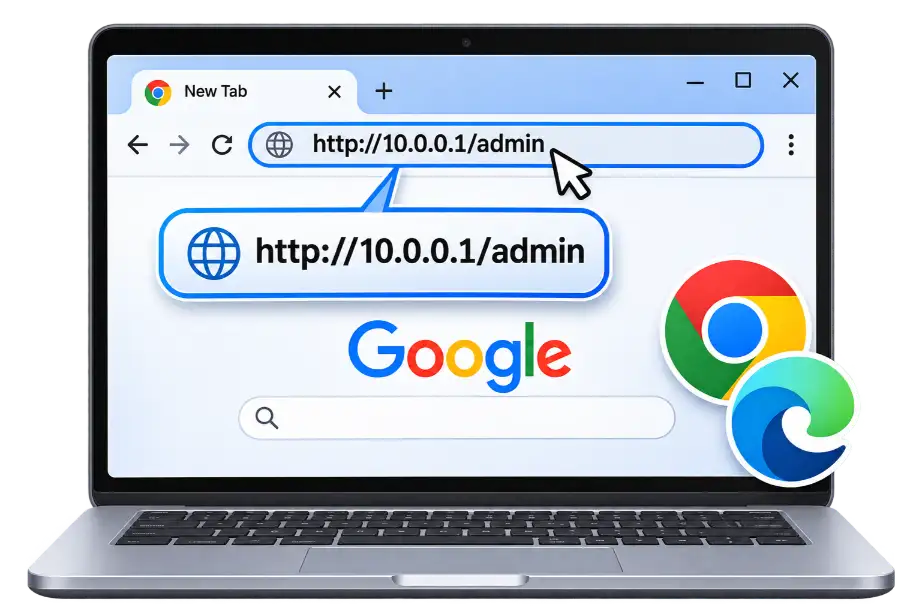
Open a web browser and enter the admin address configured for your machine.
For AdoPiSoft’s documented setup, use:http://10.0.0.1/admin
Press Enter or Go.
If the page does not appear, check your installation records or software documentation. Do not assume every Piso WiFi system uses this address.
Step 3: Enter Your Admin Username and Password
Enter your current administrator credentials.
For AdoPiSoft’s documented initial setup:
- Username: admin
- Password: admin
These are initial credentials, not guaranteed working credentials for an existing machine.
If the owner or installer changed them, use the updated details.
Step 4: Open and Check Your Dashboard
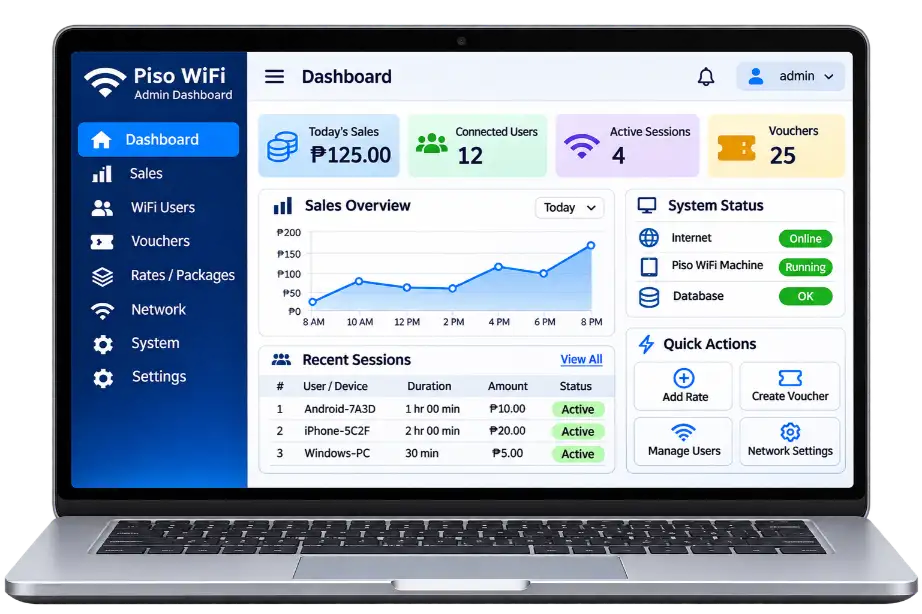
After signing in, you should see the administrative interface provided by your software.
Check that you are managing the correct machine before changing settings.
The dashboard may show sales, connected users, machine status, vouchers, rates, and network options.
Piso WiFi Admin Login IP Address and Default Password
There is no single admin IP address or password that works on every Piso WiFi machine. Piso WiFi is a type of paid internet vending service. Different software platforms and installations can use different management addresses.
Login detail | AdoPiSoft documented setup | Other Piso WiFi systems |
|---|---|---|
Admin address | http://10.0.0.1/admin | Depends on software and configuration |
Initial username | admin | Check provider documentation |
Password changes | Supported | Depends on the system |
Remote management | Depends on supported configuration | Depends on platform and setup |
Is 10.0.0.1 Always the Admin IP?
No. 10.0.0.1 is a private IP address used on some local networks.It may host a customer portal, an admin interface, or another network service, depending on the installation.
It is not automatically the management address of every Piso WiFi machine.If your system uses another address, follow its official setup instructions.
AdoPiSoft Admin Login
AdoPiSoft provides software for managing supported WiFi vending machines.Its official activation guide documents the local administrator address:http://10.0.0.1/admin
It also documents the initial credentials as admin for both the username and password. To access the panel:
AdoPiSoft provides features for viewing sales, managing WiFi users, configuring supported rates, and managing administrator permissions.
The available functions depend on your software version, license, and account permissions.Learn more in our AdoPiSoft Piso WiFi guide.
LPB Piso WiFi Admin Login
LPB Piso WiFi is a separate platform with its own management features and account configuration. Its official website describes capabilities including remote monitoring, vouchers, bandwidth controls, transaction tracking, and other business tools.However, feature availability can depend on the installed version, license, and machine setup.
Do not assume LPB uses AdoPiSoft’s admin address or default password.
To access an LPB machine:
If you cannot find your login details, contact your installer or official LPB support.Read our LPB Piso WiFi guide for more information about the platform.
What Can You Manage in the Piso WiFi Admin Dashboard?
Owners use the dashboard to set internet rates, change Pause Time settings, manage vouchers, and check connected users.
Management area | What it does |
|---|---|
Sales reports | Displays supported transaction and revenue records |
Connected users | Shows active clients and sessions |
Internet rates | Controls available pricing packages |
Vouchers | Manages prepaid internet access codes |
Bandwidth | Configures supported speed and traffic limits |
Network settings | Provides network configuration options |
Admin accounts | Manages authorized accounts and permissions |
Shows machine and software details
Check Sales and Transactions
Sales reports help operators review recorded purchases and monitor machine activity.Depending on the software, you may be able to filter records, inspect transaction details, or export supported reports.
Manage Internet Rates
Some dashboards allow administrators to set prices based on internet time, data, or other supported packages.Before changing rates, review the current configuration and confirm how the changes affect customers.
Monitor Connected Users
A supported dashboard may show active clients, session status, and connection details.Use this information to monitor service activity and investigate legitimate operational issues.
Control Bandwidth
Some platforms provide bandwidth limits or traffic-management options.Incorrect changes may affect customer internet access. Record existing settings before modifying them.
How to Change Your Piso WiFi Admin Username and Password
Changing initial administrator credentials helps protect your machine against unauthorized access.AdoPiSoft’s official Admin: My Profile documentation confirms that both the administrator username and password can be changed under account details.
Change AdoPiSoft Admin Credentials
The exact layout can vary by software version.
Tips for a Secure Admin Password
Use a long, unique password that is difficult to guess.Avoid passwords such as admin, 123456, your business name, or your machine name.
Keep your credentials in a trusted password manager or another secure location.Do not share your main administrator password with every staff member if your platform supports separate accounts.
How to Create and Manage Admin Accounts
AdoPiSoft supports secondary administrator accounts with configurable permissions.According to its official account-management guide, administrators can open the Accounts section, select Create Account, and assign a username and password.
Permissions are selected by default when creating an account. Administrators can remove permissions that the secondary account does not need.Examples of documented permissions include:
For example, a staff member responsible for sales may need access to sales records but not permission to change network settings or manage administrator accounts.Assign only the permissions required for each person’s responsibilities.Review accounts regularly and remove access when it is no longer needed.
Why Is Piso WiFi Admin Login Not Working?
If you cannot access your dashboard, the problem may involve the management address, network connection, credentials, or software service.Start by checking the details you already know rather than changing network settings immediately.
Problem | What to do |
|---|---|
Admin page will not open | Confirm the correct admin address |
10.0.0.1/admin does not load | Check whether your system uses that address |
Browser reports a connection error | Verify your management-network connection |
Username or password is rejected | Check your current administrator credentials |
Customer portal opens instead | Verify the complete admin URL |
Dashboard features are missing | Check account permissions and software version |
Remote access is unavailable | Review the provider’s supported remote-access setup |
The Admin Page Does Not Load
Confirm that your phone or computer is connected to the correct network.Check your machine’s official administrator address.If your installation does not use 10.0.0.1/admin, entering that URL will not necessarily open the dashboard.For more detailed local-address troubleshooting, see our 10.0.0.1 Not Opening guide.
The Password Is Rejected
Check for typing mistakes and outdated saved passwords.If the machine has already been configured, the installer or owner may have changed the original credentials.Use your assigned login details instead of trying random passwords.
The Customer Portal Appears
You may have opened the customer-facing page rather than the administrator interface.Check the complete management URL provided for your software.For AdoPiSoft’s documented local setup, the admin address includes /admin.That path is not universal across all platforms.
Some Dashboard Options Are Missing
Missing settings do not always indicate a broken dashboard.Your administrator account may have restricted permissions, or the installed software version may provide different features.Ask the primary administrator to review your permissions when appropriate.
What If You Forget Your Piso WiFi Admin Password?
If you forget your administrator password, first check your securely stored credentials and installation records.If another authorized administrator account is available, its owner may be able to help through the software’s supported account-management features.
Otherwise, contact your provider or authorized installer for the appropriate recovery procedure.Do not perform a factory reset without checking the consequences.
A reset or reinstallation may affect machine settings and stored information.If your platform supports backups, confirm that a usable backup exists before major maintenance.AdoPiSoft provides official guidance for backing up and restoring supported settings.
How to Secure Your Piso WiFi Admin Dashboard
Your administrator account controls important parts of your vending-machine operation.Follow these practices to reduce unnecessary security risks.
If remote administration is supported, use the security measures recommended by your provider.Avoid exposing an unprotected local admin interface directly to the public internet.
Frequently Asked Questions
Final Thoughts
The Piso WiFi admin dashboard helps authorized machine owners and operators monitor sales, manage connected users, update supported settings, and maintain their vending systems.If your machine uses AdoPiSoft’s documented local configuration, start with http://10.0.0.1/admin and your current administrator credentials.
If you use LPB or another platform, check its own documentation rather than assuming the same login details will work.Once you have access, protect your credentials, review account permissions, and back up important settings before making major changes.