
AdoPiSoft Piso WiFi: Fix Login Issues, Pause Time & Explore v6
Can’t open the AdoPiSoft Piso WiFi login page at 10.0.0.1, pause your internet time, or access the admin dashboard? First, connect to the correct WiFi network. AdoPiSoft uses 10.0.0.1 in its documented setup, but your machine’s address and available options may be different.
AdoPiSoft Piso WiFi is software for managing paid WiFi vending machines in the Philippines. Customers can purchase internet time or data, while owners can manage rates, connected users, payments, and network settings.
This guide covers customer login, Pause Time, software features, supported hardware, installation, admin access, and AdoPiSoft license prices for 2026.
What Is AdoPiSoft Piso WiFi?
AdoPiSoft, formerly called Ado Piso WiFi, is a WiFi hotspot management system developed by Flarego Technologies Corp. in the Philippines.
It is software that runs on supported hardware, not the physical vending machine itself.
Machine owners use AdoPiSoft to sell internet access through coins, vouchers, and other supported payment options. The software manages customer sessions and provides tools for monitoring the WiFi business.
How Does AdoPiSoft Piso WiFi Work?
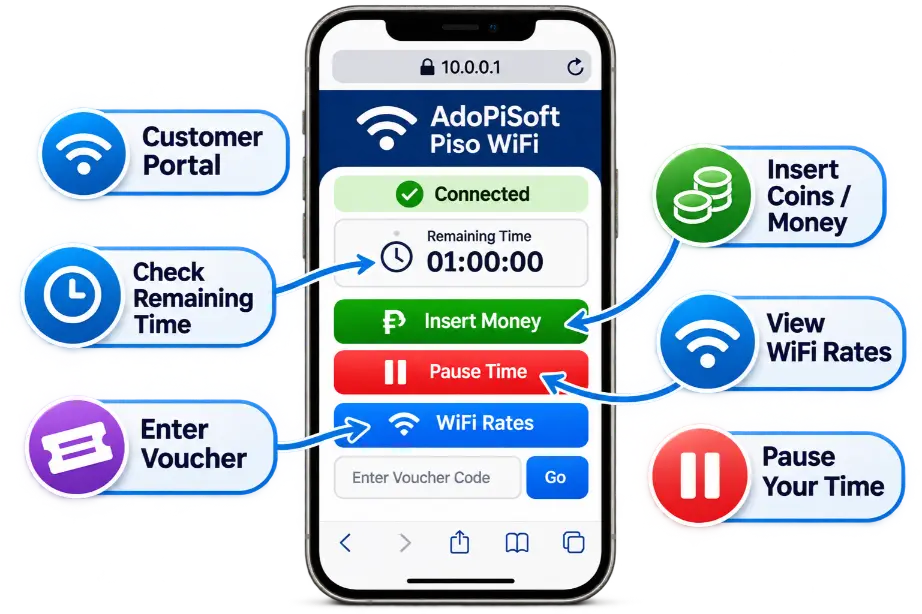
A typical customer session works like this:
Owners decide the available packages, rates, session limits, and payment options.
AdoPiSoft Piso WiFi 10.0.0.1 Login
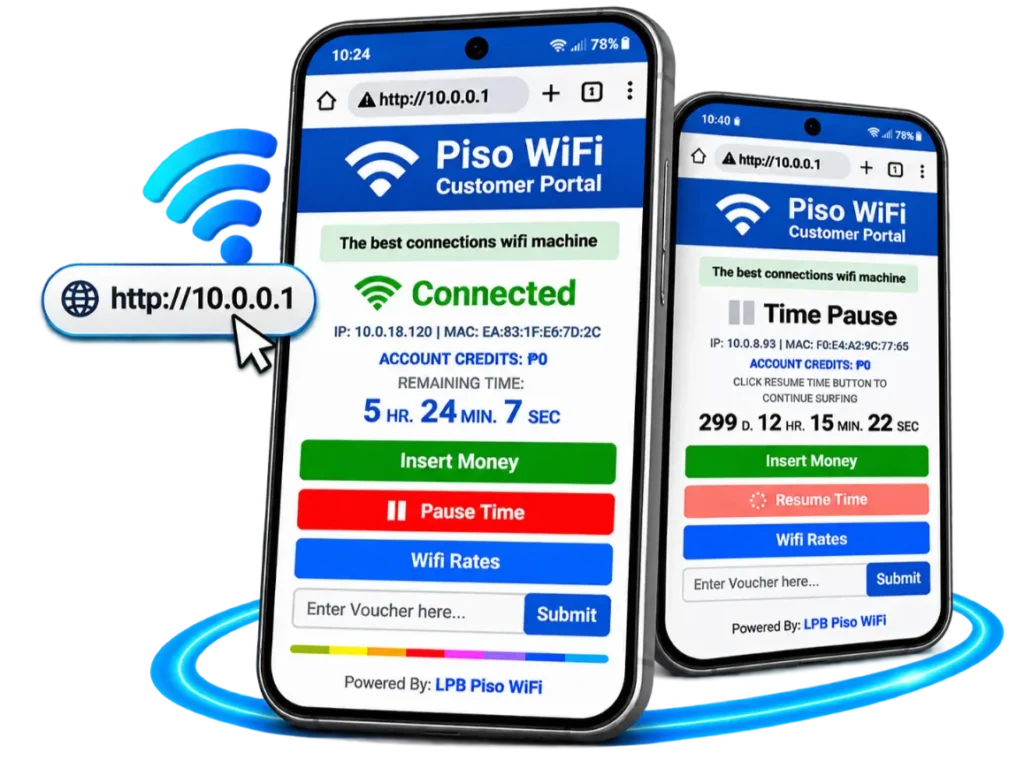
AdoPiSoft’s official documentation uses 10.0.0.1 as the local machine address. Customers can try http://10.0.0.1 to open the portal, while authorized administrators can access the dashboard through http://10.0.0.1/admin in the documented setup.
The operator may change these addresses through network configuration.These are local network addresses. You normally need to connect to the correct AdoPiSoft WiFi network before opening them.
How to Open the AdoPiSoft Login Portal
Enter the address directly into Chrome, Safari, or another browser rather than searching for it on Google.
Important: If 10.0.0.1 doesn’t work, check the portal address provided by the machine owner.
Why Is 10.0.0.1 Not Opening?
Try these basic checks:
- Make sure you’re connected to the correct WiFi network.
- Temporarily turn off mobile data if your phone switches connections.
- Enter http://10.0.0.1 correctly.
- Disconnect and reconnect to WiFi.
- Ask the operator whether the portal address has changed.
For more detailed customer instructions, visit our Piso WiFi Login Page.
AdoPiSoft Pause Time: How to Pause and Resume
Want to save unused internet time for later? AdoPiSoft supports session pausing, but pause limits and expiration rules are controlled by the machine’s settings.This means two AdoPiSoft machines may handle Pause Time differently.
How to Pause AdoPiSoft Piso WiFi Time
If your machine allows manual pausing:
The exact controls may differ by software version and operator settings.
Will My Remaining Internet Time Be Saved?
A successful pause can stop time consumption according to the machine’s configured rules. However, pausing does not necessarily stop the session’s expiration timer.
AdoPiSoft’s official documentation gives these example settings:
| Session Credit | Example Pause Limit | Example Expiration |
|---|---|---|
| 1–2 hours | 10 pauses | Session time + 1 hour |
| 1,000–2,000 MB | 10 pauses | 1 day |
| Time with data cap | Unlimited pauses | Session time + 1 hour |
For example, under the documented time-credit setting, a two-hour session expires after three hours, even if some time remains unused.These are example configurations, not fixed rules for every AdoPiSoft machine.
Does AdoPiSoft Support Automatic Pause?
Yes. AdoPiSoft documents settings that can automatically pause sessions when a device becomes inactive or disconnects from the WiFi network.
It also provides an option to pause active sessions when the machine loses internet connectivity. Sessions can automatically resume after reconnection when the relevant options are enabled.For general Pause Time instructions and explanations, visit our Piso WiFi Pause Time Page.
AdoPiSoft Piso WiFi Features
AdoPiSoft includes tools for running and managing a paid WiFi hotspot.
Coin-Operated Internet Access
AdoPiSoft supports compatible coin acceptors for automatic internet credit purchases.Owners configure the rates and connect the payment hardware to the supported board.
Voucher and Customer Management
Operators can manage customer accounts and supported voucher-based access.They can also control how internet time or data is assigned to users.
Bandwidth and Speed Control
AdoPiSoft provides bandwidth management tools that help owners distribute internet speed among customers.Available controls depend on the software edition and network setup.
Session Pause and Expiration Settings
Owners can configure pause limits, session expiration, and automatic pause behavior.This helps control how customers use purchased time or data.
Remote Machine Management
AdoPiSoft offers remote management through its online management system.Owners can monitor supported machines and manage business settings without always being physically present.
Sales and Rate Management
Operators can configure internet packages and review business information through the administrator dashboard.The available tools depend on the software version and license.
AdoPiSoft Supported Hardware and Software Versions
Before installing AdoPiSoft, check your hardware model and software version.The official v6 download page lists the following platforms:
| Hardware | AdoPiSoft v6 Download Listing |
|---|---|
| Raspberry Pi 3/4/5 | Listed |
| Orange Pi One | Listed |
| Orange Pi PC | Listed |
| Orange Pi Zero 3 | Listed |
| Orange Pi 5 | Listed |
| Orange Pi 5 Plus | Listed |
| x86_64 PC | Listed |
AdoPiSoft’s broader hardware documentation also mentions older devices, including Newifi 3 D-2, Asus Tinker Board, NanoPi R2S, and Android TV boxes.Do not assume that every device supported by an older AdoPiSoft version is supported by v6. Check the exact image and installation guide before proceeding.
What Is AdoPiSoft Community Edition?
AdoPiSoft also advertises a free, plugin-based Community Edition (Beta) built on the Flarewifi platform.It uses a modular approach, allowing operators and developers to add supported features through plugins.
Community Edition is separate from the established v5/v6 licensing arrangements. Its availability and supported hardware may change during beta development.Some Community Edition hardware downloads are still marked as “Coming Soon.” Check the official page for supported devices and current download availability before planning an installation.
How to Download and Set Up AdoPiSoft Piso WiFi
AdoPiSoft installation requires compatible hardware, the correct software image, networking equipment, and suitable power connections.
Step 1: Prepare Your Hardware
Choose a supported board or computer.For a coin-operated installation, you may also need a compatible coin acceptor, storage card, power supply, cables, and wireless access point.Check the official hardware guide before purchasing components.
Step 2: Download the Correct Software Image
Visit the official AdoPiSoft downloads page.
Select your hardware model, software edition, and the appropriate network configuration.AdoPiSoft documents configurations such as VLAN, USB-to-LAN, and supported built-in WiFi setups.
Step 3: Install the Software
Follow the official installation instructions for your hardware.Some boards require flashing an image to a storage card, while computer-based installations may use another installation method.Do not use a software image intended for a different device.
Step 4: Connect and Configure the Network
Connect the internet source, supported access point, and required equipment.Configure the network according to the installation guide.AdoPiSoft documents both VLAN and USB-to-LAN access point setups.
Step 5: Configure the Admin Dashboard
Open the administrator dashboard using your machine’s management address.Set up the internet rates, session rules, customer access, and supported payment options.Change any default administrator credentials during setup.
Step 6: Test the Machine
Before accepting customer payments, check that:
For detailed instructions, use the official AdoPiSoft documentation.
AdoPiSoft License Plans and Prices
AdoPiSoft offers different license options for small installations and larger WiFi businesses.
| License | Advertised Price | Main Features |
|---|---|---|
| Business Annual | $10/year | Unlimited users, advanced settings |
| Lite | $16.99 | Up to 50 connected users, one admin |
| Business | $65.99 | Unlimited users and admins |
| Subvendo Credit | $7.07 | One subvendo activation |
License clarification: Business Annual is a recurring $10 yearly subscription. The $65.99 Business license is a separate purchase with different terms depending on the software version.Prices are in US dollars and may change. Check the official AdoPiSoft license shop before buying.
Lite License
Lite is designed for smaller WiFi vending installations.It supports up to 50 connected users, excluding inactive users, and provides one administrator account.The official listing states that Lite is perpetual on v5 but uses yearly licensing on v6, with the first year included.
Business License
Business supports unlimited WiFi users and administrator accounts.It also provides advanced network configuration and supports ARM and x64 machines.The advertised $65.99 license is perpetual on v5. On v6, yearly licensing applies, with the first year included.
Business Annual License
The Business Annual option is advertised at $10 per year with recurring billing.It includes unlimited users, advanced network settings, and unlimited administrator accounts.
Subvendo Credit
A Subvendo Credit is advertised at $7.07 for one subvendo activation.The official listing describes lifetime validity for this credit.
Which AdoPiSoft License Is Best?
Choose Lite if you have a smaller installation and its user and admin limits are enough.
Consider Business if you need advanced configuration, more administrators, or support for larger deployments.
The Business Annual plan may suit operators who prefer a lower initial license payment with recurring charges.
Before purchasing, confirm the software version, license renewal terms, and hardware compatibility.
AdoPiSoft Admin Login and Dashboard
The administrator dashboard is for machine owners and authorized operators.AdoPiSoft’s official activation guide documents this admin address:http://10.0.0.1/admin
The same guide uses admin as both the initial username and password.These are documented setup credentials, not guaranteed login details for every AdoPiSoft machine. The operator may have changed them, and newer installations may use different settings.
If you’re setting up a new machine, change default credentials to a strong, unique password.The dashboard can provide access to network configuration, session settings, customer management, rates, and machine activation.For broader administrator guidance, visit Piso WiFi Admin Login Page.
AdoPiSoft vs. LPB Piso WiFi
AdoPiSoft and LPB are separate WiFi vending software platforms used by operators in the Philippines.
Feature | AdoPiSoft | LPB Piso WiFi |
|---|---|---|
Paid WiFi access | Supported | Supported |
Coin-operated payments | Supported | Supported |
Admin dashboard | Available | Available |
Pause Time | Configurable session rules | Advertised cloud pause/resume |
Remote management | Available | Available |
Hardware support | Version-specific AdoPiSoft devices | LPB-supported devices |
License plans | Lite, Business and other options | Lite, Premium, Lifetime V2 and Legacy |
AdoPiSoft publishes detailed session pause and expiration settings. LPB advertises cloud-based session synchronization across participating machines.
Neither platform is automatically the best choice for every operator. Compare hardware support, network features, licensing, and available technical assistance.Read our LPB Piso WiFi guide for more information about the alternative platform.
Common AdoPiSoft Piso WiFi Problems and Quick Fixes
10.0.0.1 Is Not Opening
Connect to the correct AdoPiSoft network and enter the address in your browser. Ask the operator if the machine uses another portal address.
Pause Time Is Not Available
The operator may have disabled manual pausing or set specific session rules. Check the portal or ask the machine owner.
Internet Time Expires While Paused
Session expiration can continue according to the configured rules, even while a session is paused. Check the package’s expiration settings.
Connected to WiFi but No Internet
Confirm the correct management address and authorized credentials. If you’re the owner, consult the official recovery instructions before resetting the machine.
Admin Dashboard Is Not Opening
The machine may have lost its upstream internet connection. Operators should check the modem, network configuration, and machine status.
Frequently Asked Questions
Final Thoughts
AdoPiSoft Piso WiFi offers tools for operating paid WiFi vending machines in the Philippines. It supports customer sessions, internet rates, bandwidth controls, payment hardware, remote management, and configurable Pause Time rules.
If you’re a customer, connect to the correct network and open the portal to check your internet access. If you’re an operator, focus on choosing compatible hardware, understanding session settings, and selecting the right license.