LPB Piso WiFi 10.0.0.1: Login, Pause Time, Setup & License Prices
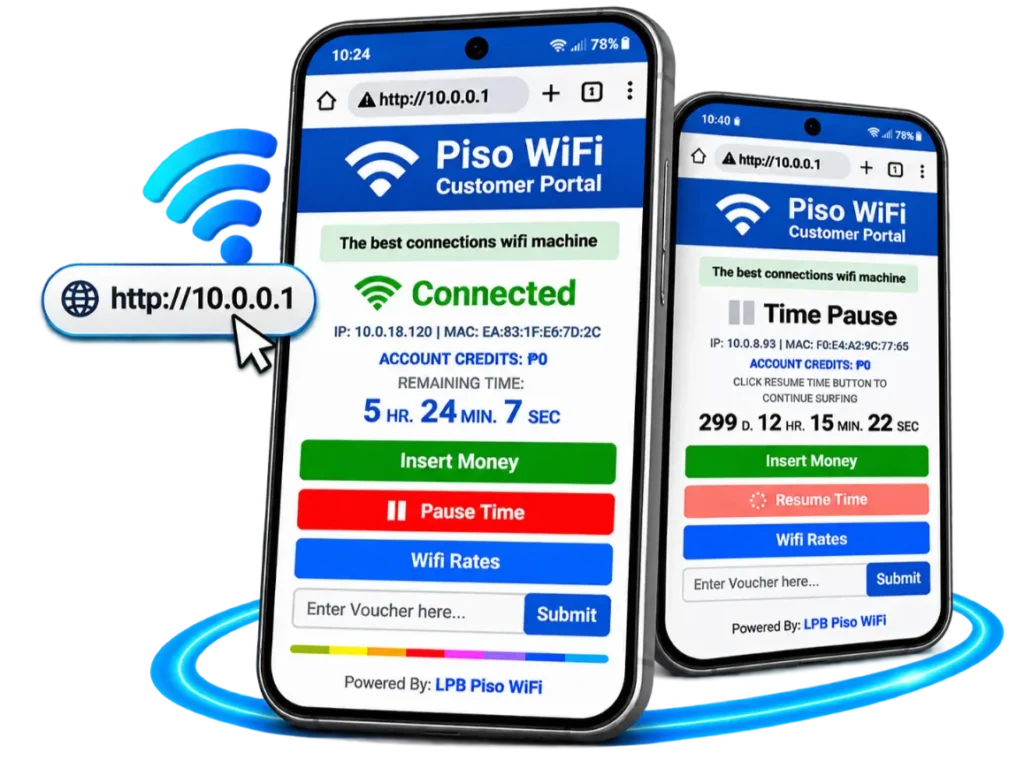
Can’t open the LPB Piso WiFi login page at 10.0.0.1, find your remaining internet time, or use the Pause Time option? First, check that you’re connected to the correct WiFi network. The portal address and available controls depend on how the machine is configured.
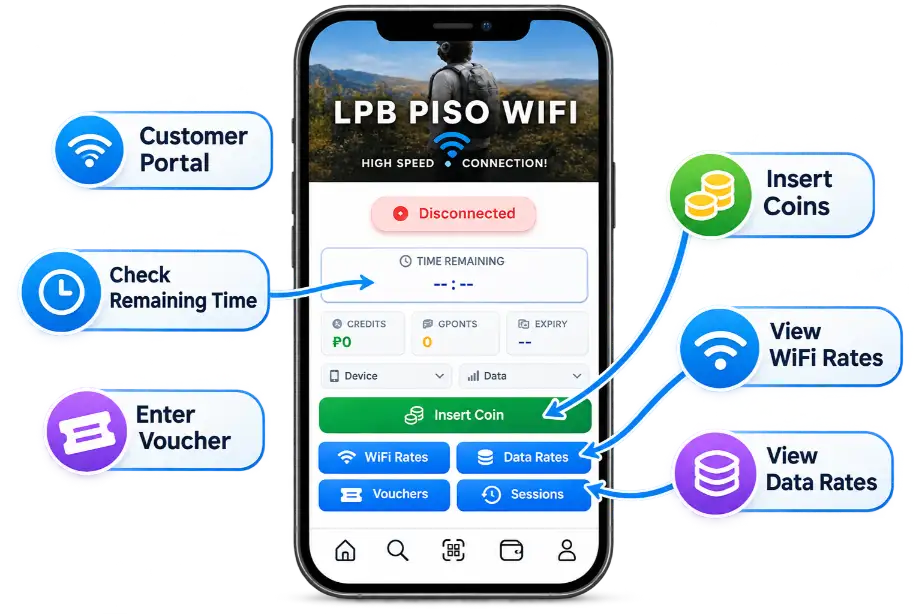
LPB Piso WiFi is a paid internet vending system in the Philippines. Customers can buy internet access using coins, vouchers, or supported digital payments. Machine owners can manage internet rates, connected users, sales, and network settings.
This guide explains how to access the LPB customer portal, use supported Pause Time features, set up a machine, access the admin dashboard, and compare LPB 2.0 license prices.
What Is LPB Piso WiFi?
LPB Piso WiFi is software used to operate coin-operated and other paid WiFi vending machines.Customers connect to a participating network and purchase internet time or data through its portal. The machine manages access based on the selected package.
For operators, LPB provides tools for setting rates, monitoring customers, tracking transactions, and managing supported machines.LPB 2.0 also offers cloud session synchronization, remote monitoring, vouchers, digital payments, and bandwidth controls.
How Does LPB Piso WiFi Work?
A typical customer session follows these steps:
The exact payment screens and session controls depend on the machine’s configuration.
LPB Piso WiFi 10.0.0.1 Login: How to Open the Portal
If the LPB login page is not opening, start with your WiFi connection rather than repeatedly refreshing the browser.
How to Log In to LPB Piso WiFi
Enter an IP address in the browser’s address bar, not in a Google search.Customers generally use the customer portal rather than the administrator dashboard.
Is 10.0.0.1 the Correct LPB Login Address?
10.0.0.1 is not a verified universal login address for every LPB Piso WiFi machine.Some third-party guides associate this IP address with LPB, but the actual customer portal depends on the installed network and operator settings.
If http://10.0.0.1 doesn’t open:
Do not change your phone’s IP settings unless you know the machine’s network configuration.For more detailed customer instructions, read our Piso WiFi Login Page.
LPB Piso WiFi Pause Time: How to Pause and Resume
Want to save your unused internet time instead of spending it all in one session?LPB advertises a cloud-based system that synchronizes supported customer session time. It also advertises the ability to pause and resume sessions across participating LPB machines in the Philippines.
The Pause Time option and its behavior depend on the installed software, connection, and operator configuration.
How to Pause LPB Piso WiFi Time
If Pause Time is available on your machine:
The exact button names and steps may differ between installations.
Will my remaining internet time be saved?
When a supported session is successfully paused, its remaining time should be preserved according to the machine’s configured rules. However, session expiration, data limits, and other restrictions may still apply. Check the information displayed in your customer portal.
What if the Pause Time button is missing?
The feature may be unavailable or configured differently. Ask the operator whether your session supports pausing.For a complete explanation, visit our Piso WiFi Pause Time Page.
LPB Piso WiFi 2.0 Features
LPB 2.0 offers features for both customers and machine owners. Availability may vary by license, hardware, and configuration.
Coin-Operated Internet Access
LPB supports coin acceptors that allow customers to purchase internet access automatically.Owners configure the supported payment hardware and available rates.
Cloud Session Synchronization
LPB advertises cloud storage for supported customer session time.This helps keep remaining time synchronized across participating LPB machines, including supported pause-and-resume sessions.
Remote Machine Monitoring
LPB includes remote monitoring features for authorized operators.Owners can use supported management tools to check machines without depending on a separate third-party tunneling service.
Vouchers and Digital Payments
LPB supports voucher codes with configurable time or data allowances.It also advertises GCash and Maya payment integration. These options require the appropriate setup and supported services.
Sales Tracking and Business Tools
LPB provides transaction records and management features.Its wider platform also advertises PPPoE subscriptions, e-loading, cash-in services, Piso Net, phone rental, and multi-subvendo setups.Some features may need extra configuration or licensing.
Bandwidth and Traffic Management
Operators can use supported tools such as:
These settings help distribute the available internet connection among customers.
LPB Piso WiFi Supported Hardware
Before building an LPB machine, check whether the software supports your chosen device.The official LPB website lists several hardware options.
Hardware | Description |
|---|---|
Raspberry Pi 3/4 | Established single-board computer options |
Raspberry Pi 5 | Higher-performance Raspberry Pi option |
Orange Pi One/PC | Budget-friendly board options |
Orange Pi Zero 3 | Compact single-board computer |
Orange Pi 5 | Higher-performance Orange Pi board |
Newifi 3 D-2 | Router-based installation option |
Newifi D2 | Router option with a supported Direct ROM Flash method |
Linksys EA8300 | Tri-band router with MU-MIMO |
Ruijie EW1200G PRO | Dual-band router option |
PC or mini PC | Computer-based installation |
MXQ Android box | Budget-oriented hardware option |
Newifi naming clarification: LPB lists Newifi 3 D-2 and Newifi D2 separately. It also provides a Newifi D2 Direct ROM Flash installation method, which is not another router model.Always choose the correct software image for your exact hardware model and revision.
How to Set Up LPB Piso WiFi
Setting up an LPB machine involves choosing compatible hardware, installing the correct software, configuring the network, and testing customer access.
Step 1: Choose Compatible Hardware
Select a supported Raspberry Pi, Orange Pi, router, or other listed device.Check the official download options before buying equipment.
Step 2: Download the LPB Software
Visit the official LPB download page. Choose the software package or image intended for your exact hardware.Do not install firmware intended for a different model.
Step 3: Install and Connect Your Equipment
Follow the device-specific installation instructions.Connect the required internet service, networking equipment, power supply, and supported vending components.Wiring and installation methods vary between devices.
Step 4: Configure Your Machine
Complete the supported initial setup, including the settings relevant to your installation:
- Internet and network connection.
- Administrator account.
- Coin acceptor.
- Internet rates and packages.
- Customer portal.
- License activation.
- Optional vouchers or digital payments.
Use the documentation for your software version.
Step 5: Test Customer Access
Before accepting payments, verify that customers can connect to WiFi, open the portal, purchase internet access, and use the correct time or data allowance.Also check that administrator access is secured.
LPB Piso WiFi License Plans and Prices (2026)
LPB offers different license plans for machine operators.The following prices were advertised on the official LPB license shop in November 2026.
| License | Promotional Price | Regular Price |
|---|---|---|
| Lite | ₱250 | ₱400 |
| Premium | ₱500 | ₱700 |
| Lifetime V2 | ₱900 | ₱1,500 |
| Legacy | ₱900 | Not confirmed |
These are advertised prices, not guaranteed future prices. Check the official LPB license shop immediately before purchasing.
Lite License
Lite is intended for smaller installations.Its advertised features include a limit of 50 users, excluding offline users, and one sub-account.Lite has one-year validity and is not supported on LPB version 15.3 and below.
Premium License
Premium offers unlimited users and sub-accounts under its advertised plan.The newer license arrangement has one-year validity. LPB states that Premium remains lifetime on version 15.3 and below.
Lifetime V2 License
Lifetime V2 is advertised without an expiration date.Check its compatibility terms before purchasing. A lifetime license does not automatically guarantee support for every future hardware platform or software release.
Legacy License
The Legacy license is listed for older LPB arrangements, including version 15.3.Confirm the applicable software compatibility and license terms before buying.
Which LPB License Should You Choose?
Choose Lite if you’re running a smaller installation and its limits meet your needs.
Consider Premium if you need greater capacity or additional account flexibility.
Consider Lifetime V2 if you prefer the advertised no-expiration arrangement and your installed software is compatible.
LPB Piso WiFi Admin Login and Dashboard
The LPB administrator dashboard is intended for machine owners and authorized operators.Depending on the installation, owners can manage:
How to Access the LPB Admin Portal
Use the management address and administrator credentials assigned to your machine.Some third-party websites suggest 10.0.0.1/admin with a password such as 123456789. These details should not be treated as universal LPB credentials.
If you cannot access your dashboard, check your installation records or contact your authorized installer.For detailed guidance, see our Piso WiFi Admin Login Explanation.
LPB Piso WiFi vs. AdoPiSoft
LPB and AdoPiSoft are separate paid WiFi vending platforms.Both provide customer access and operator-management features, but they differ in software, hardware compatibility, licensing, and available tools.
| Feature | LPB Piso WiFi | AdoPiSoft |
|---|---|---|
| Coin-operated access | Supported | Supported |
| Customer management | Available | Available |
| Administrator dashboard | Available | Available |
| Cloud session synchronization | Advertised by LPB | Check version-specific features |
| Hardware compatibility | LPB-supported devices | AdoPiSoft-supported devices |
| Licensing | LPB plans | Separate licensing |
| Portal configuration | Depends on installation | Depends on installation |
Choose based on your hardware, required features, license costs, and available support.
Common LPB Piso WiFi Problems and Quick Fixes
10.0.0.1 Login Page Not Opening
Confirm that you’re connected to the correct WiFi network.Check the portal address supplied by the operator. 10.0.0.1 may not be the correct address for your installation.
Pause Time Button Missing
Pause Time availability depends on the installed software and operator settings.Check the active session controls or ask the operator whether pausing is supported.
Connected to WiFi but No Internet
Check whether the upstream internet connection is working. Owners should also review the machine’s network status and customer session settings.
Payment Not Activating Internet Time
Confirm that the coin acceptor or supported digital payment service is functioning.Owners should review transaction records and payment configuration.
Admin Dashboard Not Opening
Check the assigned management address and authorized credentials. Avoid resetting or reflashing equipment without checking the official recovery instructions and backup requirements.
Frequently Asked Questions
Final Thoughts
LPB Piso WiFi provides tools for operating paid internet vending machines in the Philippines, including coin payments, vouchers, remote monitoring, bandwidth management, and cloud-connected sessions.
If your LPB Piso WiFi 10.0.0.1 login page is not opening, check your WiFi connection and confirm the correct portal address before changing device settings.
If you want to use Pause Time, check whether your machine supports the feature. For new operators, choosing compatible hardware, installing the correct software, and checking license terms are the most important starting points.